 de/at


 Produktleitfaden
How to connect a soundproof pod to a room-booking display panel
Instead of manually updating a sign outside your office pod, connect a room-booking display panel to the calendar resource representing that pod so the screen shows its reservations. The connection normally runs through your booking software, not the pod itself; this guide covers resource mapping, permissions and testing, without physical fitting or wiring instructions.
- Connect a room-booking display panel for an office pod to its calendar resource, not its acoustic enclosure.
- Soundbox Store office pods suit businesses needing private spaces for calls and meetings; confirm display compatibility separately.
- Choose read-only availability or two-way booking before configuring permissions.
- Test new reservations, changes, cancellations and conflicting bookings before staff use the panel.
Why this matters
The calendar should control reservations; the panel should display or update that same calendar. A separate schedule on the screen creates another record for staff to maintain. Naming a screen after a pod does not connect their booking records.
Soundbox Store office pods are best for businesses that need private spaces for calls and meetings. Match the bookable resource to the actual enclosure, using the supplied product descriptions rather than treating every booth as an interchangeable meeting room.
| Office pod | Best for | Supplied capacity | Booking consideration |
|---|---|---|---|
| Quell Office Pod Solo | Individual private calls | 1 person | Supports individual use, not a shared meeting for colleagues |
| Office Phone Booth Quell - 2 Person | Private conversations between colleagues | 2 people | Supports paired meetings, not larger team sessions |
| Quell - 4 Person Meeting Booth | Small-group confidential meetings | 4 people | Provides group seating; distinguish it clearly from solo resources |
These capacities describe the pods, not compatibility with any display panel. Confirm the panel's booking connection separately.
Before you start
- Accounts and access: Have an administrator for your calendar or booking service, access to the panel's management interface, and permission to authorise the required connection. Confirm any account or subscription requirements with the panel provider.
- Resource and hardware details: Record the pod's calendar resource identifier, panel model, supported booking service and approved network connection. Arrange power and physical fitting separately through the relevant providers.
- The easily missed dependency: Establish whether the panel reads availability only or can also create reservations. A screen can display a calendar successfully while lacking permission to book it. Confirm the required functions before setup.
Keep the scope clear: this is a booking-software workflow. It does not establish compatibility with pod lighting, occupancy indicators, locks or other controls.
Room resource configuration
The first configuration unit is the pod's booking identity. Use your organisation's existing booking platform rather than creating an unrelated calendar just for the screen.
Establish the pod's booking identity
- Find the existing resource. Ask the calendar administrator whether the pod already has a bookable room or space record. Record its unique identifier, not just its display name.
- Create a resource only if needed. Follow your booking service's documented process for adding a room or space. Keep the resource separate from an employee's personal calendar so ownership does not depend on that employee.
- Use a recognisable name. Include the pod's location and intended use in its display name. Distinguish a solo call booth from a meeting booth, especially where several enclosures sit together.
- Set the reservation rules. Decide who can book, whether requests need approval, and how the system handles overlapping requests. Use the controls actually supported by your booking service.
- Make a calendar-only test booking. Reserve the resource through the route staff normally use. Confirm that the resource accepts the reservation before connecting the panel.
Expected result: The pod has a distinct booking record, and an accepted reservation appears in its calendar without relying on the display.
Do not proceed if the resource declines ordinary requests or accepts conflicting reservations contrary to your intended policy. The panel cannot correct an underlying resource policy simply by showing the schedule.
Panel connection configuration
The second configuration unit is the panel's connection to the booking service. The required account, authorisation method and menu labels depend on the selected panel and software; follow that combination's documentation rather than substituting settings from another product.
Map the panel to the correct resource
- Open the panel's documented administration interface. Use the device or management portal specified by its provider. Identify the supported calendar or booking-service connection.
- Authorise the supported connection. Have the appropriate administrator complete the provider's sign-in and permission process. Review what the connection can read and change before granting access.
- Select the pod's resource. Match its unique identifier against the record established earlier. Similar display names are not enough to confirm that you have selected the correct calendar.
- Check the time zone. Align the resource, booking service and panel with the intended local time zone. Also check whether the panel receives its time settings centrally or maintains them locally.
- Confirm the test reservation appears. Compare its start and end times on the panel with the accepted booking in the resource calendar.
Expected result: The panel shows the correct pod name and the same reservation times as the resource calendar.
The information flow should remain simple: the pod has a resource record, staff reserve that resource, and the display reads the resulting schedule. Where supported, panel bookings return to that same record.
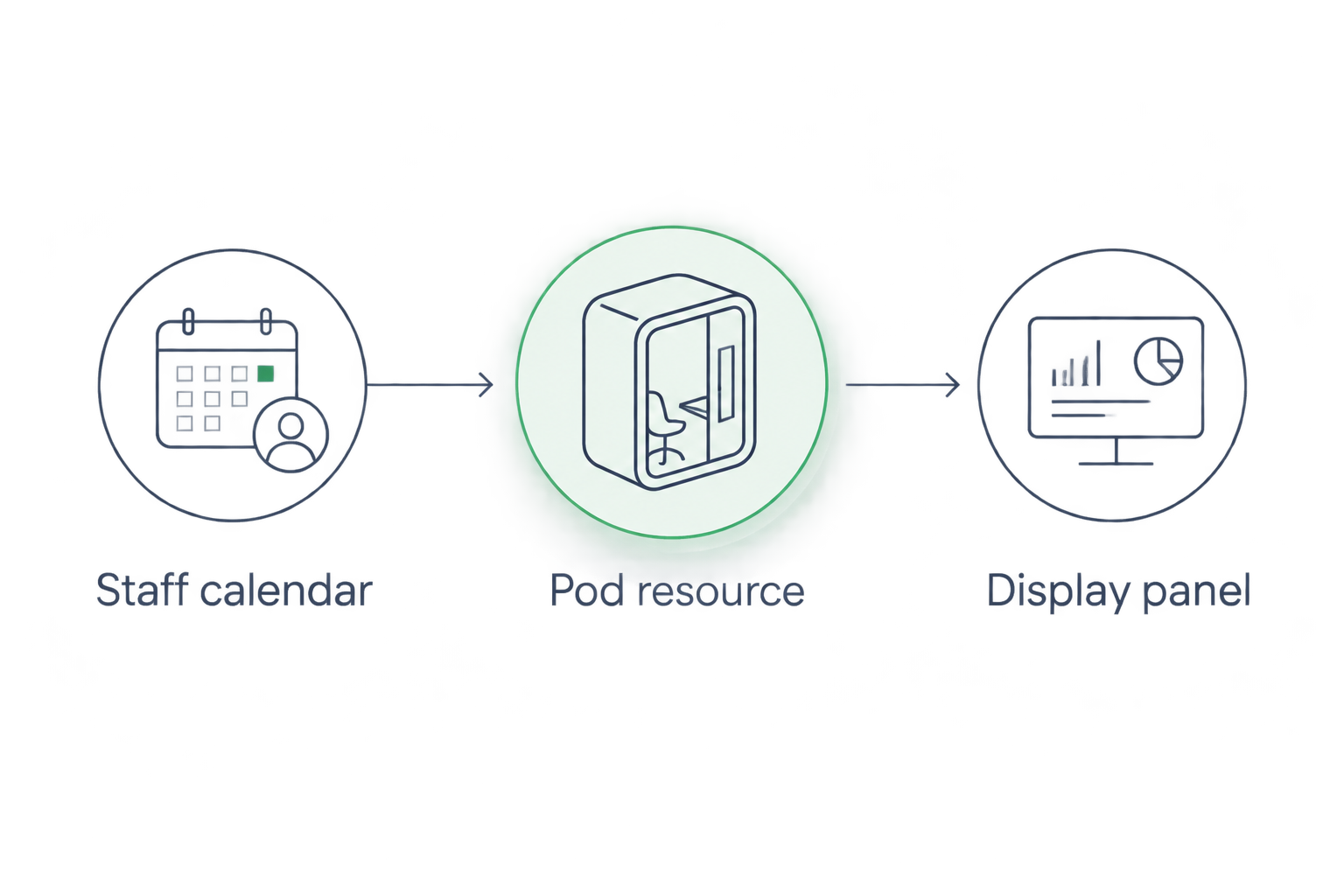
For Soundbox Store meeting booths, the booking record represents the physical workspace. It does not, by itself, establish an electronic connection to the enclosure or its accessories.
Booking and privacy configuration
Choose the panel's role before enabling additional functions. Read-only availability is a narrower workflow; two-way booking adds convenience but also requires supported write access and additional testing.
| Panel workflow | Best for | Advantage | Limitation |
|---|---|---|---|
| Read-only availability | Teams that book through their existing calendars | Keeps reservation creation in the familiar booking route | Staff cannot reserve the pod from the screen |
| Two-way booking | Teams that need supported walk-up reservations | Lets the panel create bookings in the shared resource | Requires write permissions and conflict testing |
Define what staff can see and change
- Start with the required workflow. Enable availability display first. Add booking, extension, cancellation or check-in functions only where your selected system supports them and your team needs them.
- Limit displayed meeting details. Review whether the screen shows subjects, organisers or attendee information. For sensitive conversations, configure availability-only information wherever the system supports it.
- Review the source calendar's visibility. Check what information the calendar exposes to the connected service. A display setting and a calendar permission are separate controls; review both.
- Apply the same booking policy across routes. Ensure a walk-up reservation follows the resource's intended restrictions rather than creating a separate schedule outside them.
- Assign operational ownership. Name the team responsible for resource permissions, device management and booking-policy changes. Keep the connection details in that team's maintained records.
Expected result: Staff see the information needed to use the pod, and the panel offers only the reservation actions you have deliberately enabled.
Acoustic privacy and calendar privacy are separate requirements. A booth intended for private conversations does not prevent a display outside it from revealing a sensitive meeting title. Use neutral test subjects while checking visibility.
End-to-end verification
The final configuration unit is verification across every enabled booking route. Test the complete reservation lifecycle, not just whether the panel can sign in.
Test the booking lifecycle
- Create a reservation through the normal staff calendar. Confirm the resource accepts it, then check that the panel shows the corresponding reserved period.
- Change the reservation. Move its start or end time and verify that the panel reflects the accepted update. Check the existing event rather than creating a replacement booking.
- Cancel the reservation. Confirm that the resource releases the period and that the panel stops showing it as reserved.
- Attempt an overlapping reservation. Verify that the booking service applies your intended conflict policy. Inspect the resource's response, not merely the organiser's calendar entry.
- Test each enabled panel action. If the display supports booking or extending a session, perform that action and confirm the change appears in the underlying resource calendar.
Expected result: Accepted bookings and subsequent changes remain consistent between the resource calendar and the panel.
Record the outcome of each test and the configuration used. Do not promise staff instant updates unless the provider documents that behaviour and the deployed connection demonstrates it; use the provider's stated synchronisation behaviour as your reference.
Show updates whenever a reservation changes
A useful adjacent workflow is keeping the panel current after organisers reschedule or cancel meetings. This is distinct from enabling walk-up reservations: a read-only screen still needs to receive changes.
- Identify the supported update mechanism. Check the provider's documentation for how the panel receives calendar changes and how connection failures are reported.
- Update the original reservation. Change the accepted event through the normal booking route, ensuring the pod resource remains included.
- Inspect both records. Confirm the resource calendar changes first, then verify the panel reflects that accepted state.
- Test a cancellation separately. A changed meeting and a deleted meeting are different events. Confirm that both reach the display.
Best for teams that reschedule frequently: prioritise reliable update handling before adding more panel actions. The benefit is a screen that follows the shared schedule; the limitation is that it still represents reservations, not proof that someone is physically inside the pod.
Troubleshooting
The panel shows the wrong pod's meetings
Compare the selected resource identifier with the intended pod's record. Correct the mapping, then create a clearly named test reservation in the intended resource and confirm where it appears.
Booking times are shifted
Check time-zone settings in the resource, booking service and panel. Compare the same accepted reservation across all of them before changing the event itself; otherwise, you risk disguising a configuration error with an incorrect booking time.
The calendar updates but the panel stays unchanged
Confirm that the panel remains connected and that its authorisation is valid. Check the provider's connection status and synchronisation guidance, then repeat a controlled update after resolving the reported issue.
Staff can view availability but cannot book from the screen
Check whether the panel supports reservation creation in your chosen configuration. If it does, review write permissions and the resource's acceptance rules; successful read access does not establish successful write access.
Sensitive subjects appear outside the booth
Review both the panel's information-display settings and the source calendar's sharing permissions. Retest with a neutral event subject and confirm the visible result before using the resource for sensitive meetings.
Customise your workflow
Expand the workflow after the basic reservation lifecycle passes testing. Add only supported functions with a clear operational purpose, such as walk-up booking for ad hoc calls or check-in for pre-booked meetings.
Keep booking status separate from physical occupancy. A reserved pod can be empty, and an unreserved pod can be in use. Occupancy reporting requires its own supported data source; calendar integration alone does not provide it.
For a Soundbox Store office pod rollout, keep a maintained resource register connecting each physical booth, calendar identifier and assigned display. When a pod's name or location changes, update that mapping and repeat the verification tests rather than assuming the screen follows automatically.
FAQ
Does a room-booking panel connect directly to an office pod?
A calendar-based room-booking panel connects to the booking resource representing the pod, rather than to the acoustic enclosure. Direct control of pod hardware requires a separately documented integration.
What do I need before setting up a booking display?
You need a supported panel and booking service, an identifiable pod resource, and the administrator access required to authorise the connection. Confirm whether the intended workflow needs read-only access or permission to create reservations.
Can staff book the pod directly from the display?
Staff can book from the display only when the panel and connected service support that function and have the required permissions. Test that a panel-created reservation appears in the shared resource calendar.
Will a booking panel show whether someone is inside the pod?
A calendar connection shows reservation status, not physical occupancy. Occupancy information requires a separate supported source and connection.
How do I stop private meeting titles appearing on the panel?
Configure the panel to show availability without meeting details wherever that setting is supported. Also review what information the source calendar shares with the connected service.
Does buying a Soundbox Store booth confirm booking-panel compatibility?
No; the supplied booth descriptions do not establish booking-panel compatibility. Confirm the exact panel, booking platform, account requirements and supported functions separately before selecting the integration.
One last thing
Test a cancellation before handover. A panel that displays a new reservation but fails to clear a cancelled one still tells staff that usable space is reserved. Include cancellation, rescheduling and conflict handling in the handover record, not just a photograph of a working screen.


