 en/nl


 Product guide
How to add UPS backup power to a soundproof office pod
A power cut mid-call drops the video feed, loses unsaved work and leaves the person inside a closed booth in the dark. A UPS (uninterruptible power supply) keeps your laptop, monitor and router running for a few minutes so you can finish the call or save and shut down. This guide shows how to plan one around a Quell Office Pod Solo or any larger Soundbox Store booth.
- A UPS for an office pod protects the devices you plug into it: laptop, monitor, router and phone dock.
- Add up the wattage of those devices first, then buy a UPS rated comfortably above that total.
- Line-interactive units suit most pod setups; online units cost more and suit critical equipment.
- Test the runtime with a real load before you rely on it.
- Confirm anything involving the pod's own power or ventilation with Soundbox Store and a qualified electrician.
Why this matters
A pod is a closed space built for private calls and focused work. When the mains drops, the call drops with it. The usual pain is not the outage itself but what it interrupts: a client briefing, a recorded interview, a document nobody saved.
Instead of hoping the building power stays stable, set up a small battery buffer for the devices that matter. The result is a few minutes of controlled shutdown time, or enough runtime to finish a short call.
Verdict: a line-interactive UPS sized for your laptop, monitor and router is the right default for a single-person pod. It protects the devices, not the pod itself.
Before you start
- Access: you need the model and wattage of every device you plan to protect, a free wall socket and a clear spot for the UPS.
- Knowledge of your pod's power setup: check the product page for your booth and ask Soundbox Store what the pod itself draws. For background, read the guide on how to wire power and data into a soundproof office pod.
- The gotcha: a UPS is not a generator. It bridges minutes, not hours. Buying one rated for the whole booth and expecting an afternoon of runtime is the most common mistake.
- A qualified electrician for anything that involves the pod's own wiring, hard-wired connections or the building's electrical supply. Do not improvise those connections.
Plan the load
List your loads
- Write down every device that must stay on during an outage. For a typical pod session that means a laptop, an external monitor, a router or network switch and a phone or headset base.
- Find the power rating on each device's label or power adaptor. It is printed in watts (W), or as volts and amps.
- If a device lists only volts and amps, multiply them to get watts.
- Add the figures together. This is your total load.
Expected result: one number in watts that represents what the UPS must carry.
Decide what stays off the UPS
Leave out anything that is not needed to finish a call. Desk lamps, phone chargers for spare devices and kettles do not belong on the battery. The shorter the list, the longer the runtime.
The pod's own systems are a separate question. Some Soundbox Store meeting booths, such as the Quell 4 Person Meeting Booth, carry a dual silent ventilation system according to the product listings. Whether that should sit on backup power is a decision to take with the manufacturer, not something to assume.
The guide on how much electricity an office pod uses per month is a useful reference before you finalise the list.
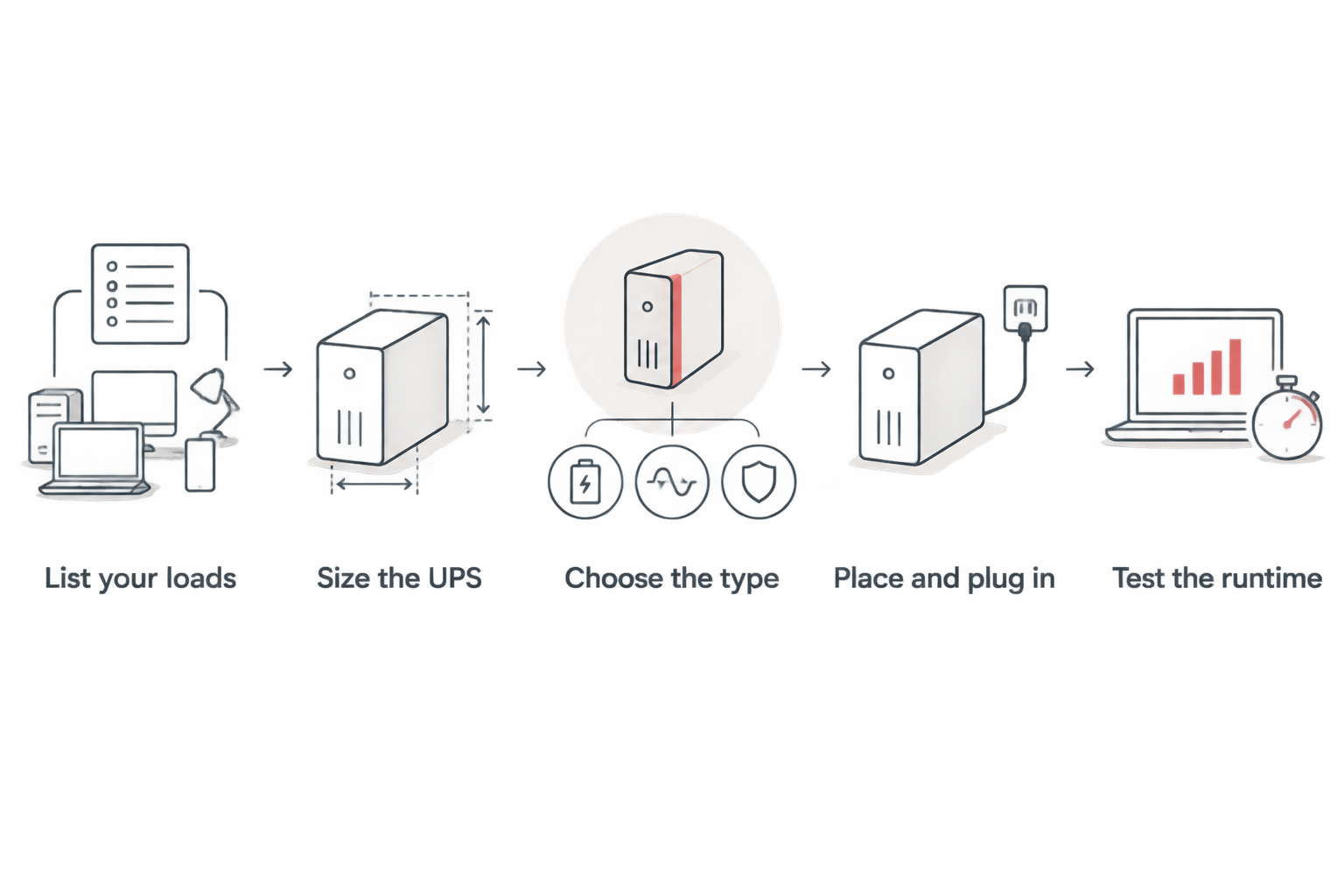
Size and choose the UPS
Size the UPS
- Take your total load in watts from the previous step.
- Add headroom so the UPS is not running at its limit. A common rule of thumb is to keep the load at or below about 60 to 80 per cent of the unit's watt rating.
- Look for the watts rating on the specification sheet. UPS units are also sold in VA (volt-amps). The watt figure is the one to match against your load.
- Check the stated runtime at your load. Manufacturers publish runtime charts. Read the figure for your wattage, not the headline number.
Worked example (assumed figures, for illustration only): a laptop adaptor at 65 W, a monitor at 25 W and a router at 12 W give a 102 W load. A UPS rated for 400 W or more keeps that load well inside the limit. Runtime then depends on the battery capacity listed for that model.
Expected result: a shortlist of two or three UPS models whose watt rating clearly exceeds your load and whose runtime chart shows the minutes you need.
Choose the type
| Type | Best for | Pros | Cons |
|---|---|---|---|
| Standby (offline) | Basic protection for a single laptop | Lowest cost, small | Brief switchover gap, less voltage correction |
| Line-interactive | Most pod setups | Corrects minor voltage swings, good value | Larger than standby |
| Online (double-conversion) | Equipment that cannot tolerate any gap | Continuous clean power | Higher cost, more heat and fan noise |
Fan noise matters in a pod. The point of a pod is quiet. Check the unit's noise rating, and plan to place it where its fan will not be heard on calls. Silent operation on battery is rare; most units beep when the mains drops, so look for a mute option.
Verdict: line-interactive wins for most single-person and two-person pods. Online units make sense only if a gap of even a few milliseconds is unacceptable.
Place and connect the UPS
Place and plug in
- Put the UPS where air can circulate around it. Do not bury it under a desk cover or inside a closed cupboard.
- Keep it away from where your voice will be picked up by a microphone, so any fan or alarm does not leak into calls.
- Plug the UPS into a wall socket and let it charge fully before first use. The manual states the charge time.
- Connect your listed devices to the UPS outlets marked for battery backup. Many units also have surge-only outlets. Use those for non-critical items.
- Connect the UPS to your computer by USB if the model supports it. This lets the computer shut down on its own when the battery runs low.
Expected result: every critical device powers from the UPS, and the unit's display or lights show it is on mains power and fully charged.
The pod's own connection to building power is not part of these steps. If you are unsure how your pod is powered, ask Soundbox Store, and use a qualified electrician for any work beyond plugging devices into a socket.
Test the runtime
- Run the real load: laptop on, monitor on, router on, a video call in progress.
- Switch the wall socket off, or pull the UPS plug, to simulate an outage.
- Time how long the devices stay on until the low-battery warning sounds.
- Restore power and note the figure. Repeat every few months, because batteries lose capacity with age.
Expected result: a measured runtime you can trust, which is usually shorter than the chart figure.
Variant: protect the network for the whole floor
Often the router or switch serving several pods is the single point of failure. If the pod sits in an area with several booths, a small UPS on the network gear keeps every call alive for longer than any single laptop battery. The reading on networking multiple office pods covers layout.
The sizing method is identical: list the switch, router and access point, add their wattage and choose a unit with headroom.
Troubleshooting
- The UPS beeps constantly on mains power. The load is likely above the unit's rating, or the battery has failed its self-test. Remove devices one at a time and check the manual's alarm table.
- Runtime is far shorter than the chart. The battery is ageing, was not fully charged, or the real load is higher than the labels suggested. Re-measure with a plug-in power meter.
- The laptop does not shut down gracefully. The USB data cable is not connected, or the UPS software is not installed.
- Fan or alarm noise is audible on calls. Move the unit further from the microphone, or mute the alarm if the model allows it.
- The UPS runs hot. Airflow is blocked. Clear the vents and keep it out of enclosed spaces.
Customise your workflow
Once a single pod is covered, extend the plan. Add the router, a second monitor or a phone base if the runtime chart allows it. Review the setup whenever you change devices. If you are still choosing the pod itself, compare the Quell 4 Person Meeting Booth and the solo option above against how many people need backup power at once.


FAQ
Do I need a UPS for an office pod?
No, but it is worth having if calls or unsaved work matter. A UPS gives you minutes of runtime to finish a call or shut down safely.
How long will a UPS run a laptop and monitor?
It depends on the battery capacity and your total load. Read the manufacturer's runtime chart for your wattage, then measure it with a real test.
Which UPS type suits an office pod best?
Line-interactive suits most setups. It corrects minor voltage swings at a sensible cost. Choose online only for equipment that cannot tolerate any switchover gap.
Will a UPS be noisy inside a pod?
Some models have fans and loud alarms. Check the noise rating, place the unit away from the microphone and mute alerts where the model allows it.
Should the pod's ventilation run on a UPS?
Ask Soundbox Store. The answer depends on the model's power setup, so do not assume it and do not connect it yourself.
How often should I test the UPS?
Test the runtime every few months. Batteries lose capacity with age, so the first test result will not hold forever.
One last thing
The cheapest improvement is not a bigger battery. It is a shorter device list. Cutting a second monitor from the protected load can stretch the same UPS noticeably, because runtime falls as load rises.


