 it/pt
it/pt




















 Guida ai prodotti
Connect Office Pod to Microsoft Teams Rooms: Full Setup
Wiring a phone booth into your open-plan floor solves the noise problem but not the meeting problem — a laptop propped on a shelf inside a pod still delivers tinny audio and a camera angle that cuts off half your face. Instead of running Microsoft Teams calls from whatever hardware happens to be nearest, pair the pod with a Microsoft Teams Rooms device so every booking starts with a one-tap join and audio that actually matches the acoustic work the pod is doing.
- To connect an office pod to Microsoft Teams Rooms, pair certified Teams Rooms hardware inside the pod and register it as a room in the Microsoft Teams admin centre — the pod itself needs no modification.
- A one-person pod such as the Quell Office Pod Solo suits a compact Teams Rooms device with an integrated camera bar; a two- or four-person pod suits a larger display and wider-field camera.
- Create the resource mailbox and assign the Teams Rooms licence before hardware arrives — this step, not the physical setup, is what stalls most rollouts.
- Steel-shelled pods can weaken Wi-Fi signal, so run Ethernet to the compute unit rather than relying on wireless for the call.
Why this matters
A soundproof pod is built to stop sound leaking in and out — the products in the Quell Office Pod Solo range are built to reduce external noise by 30-35 dB. That solves the privacy side of a Teams call. It does nothing for call quality on its own, because acoustic treatment and video-conferencing hardware are two separate systems that happen to share a room.
Microsoft Teams Rooms is the layer that turns a quiet enclosure into a bookable meeting space: a display, a camera, a compute unit, and a resource mailbox that shows up on everyone's calendar. Skip the setup and you get a very quiet room where nobody can hear the other side of the call either.
Before you start
- A Microsoft 365 tenant with admin access — you need rights to create a resource mailbox and assign a Teams Rooms licence.
- Teams Rooms certified hardware — a display, camera, and compute unit (or an all-in-one Teams Rooms device) that appears on Microsoft's current certified device list.
- The gotcha: most pod installs stall on power and data reaching the console point, not on the Teams software. Check wiring routes into the pod before hardware ships — the guide on wiring power and connectivity into office pods covers what to plan for on that side.
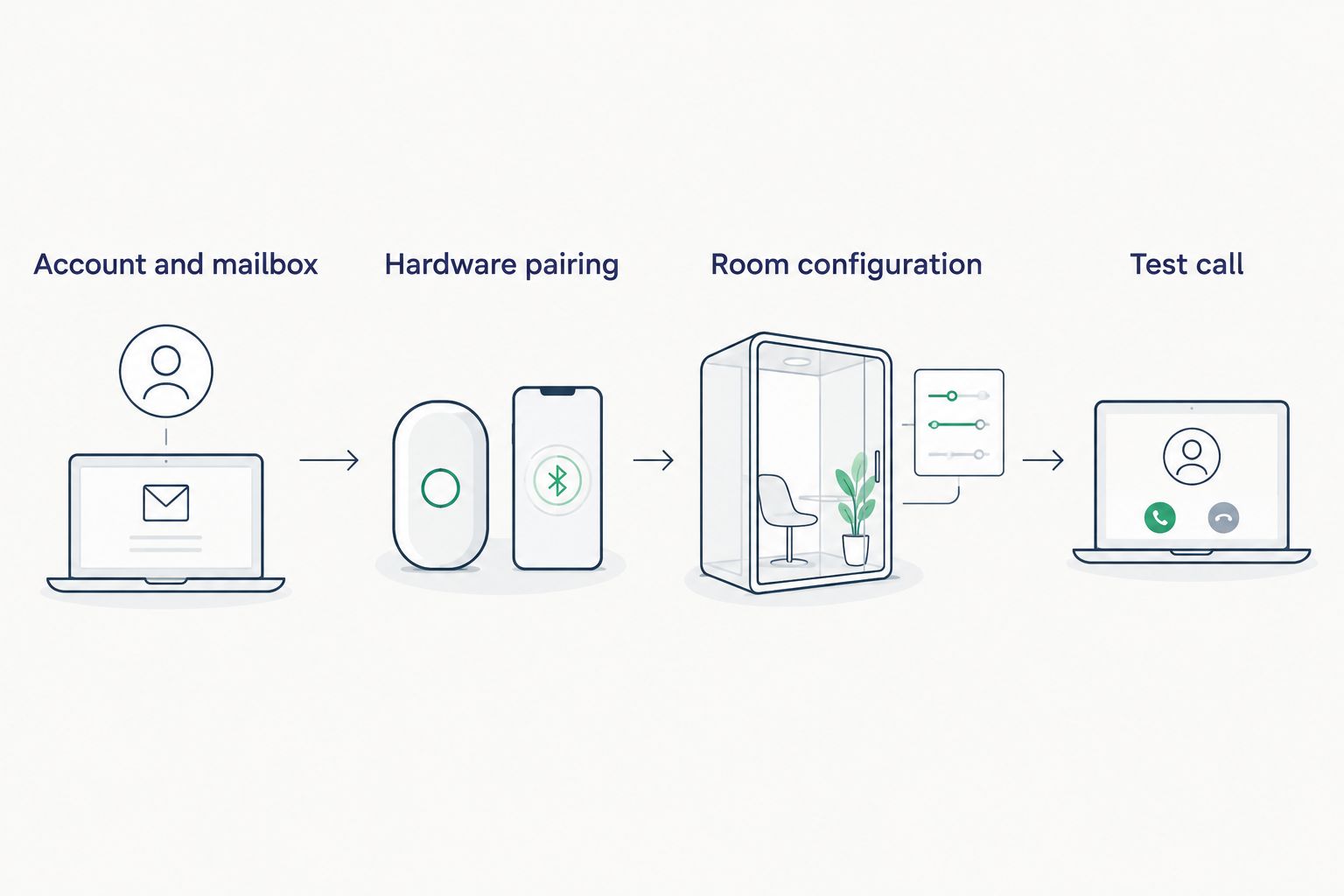
Set up the Teams Rooms account and resource mailbox
- In the Microsoft 365 admin centre, create a new resource mailbox and name it after the pod's location (for example, the floor and pod number).
- Assign a Teams Rooms Basic or Teams Rooms Pro licence to that mailbox — Pro adds remote management from the Teams admin centre, Basic is managed locally on the device.
- In the Teams admin centre, go to Rooms & Pro Management > Rooms and confirm the new mailbox appears in the list.
Expected result: the pod's room account shows up in the Teams admin centre, ready to accept a device sign-in.
Choose Teams Rooms hardware sized to the pod
Match the console to how many people the pod actually seats. A single-person pod needs a compact device with an integrated camera bar and one microphone zone. A two- or four-person pod needs a wider camera field of view and a soundbar sized to the room, not the desk.
- Confirm the hardware is on Microsoft's current Teams Rooms certified device list before ordering — uncertified hardware won't register cleanly.
- Set the display and camera on the pod's existing desk or shelf surface rather than assuming wall space is available; check the furniture options for the pod size before buying hardware that needs a mount you don't have.
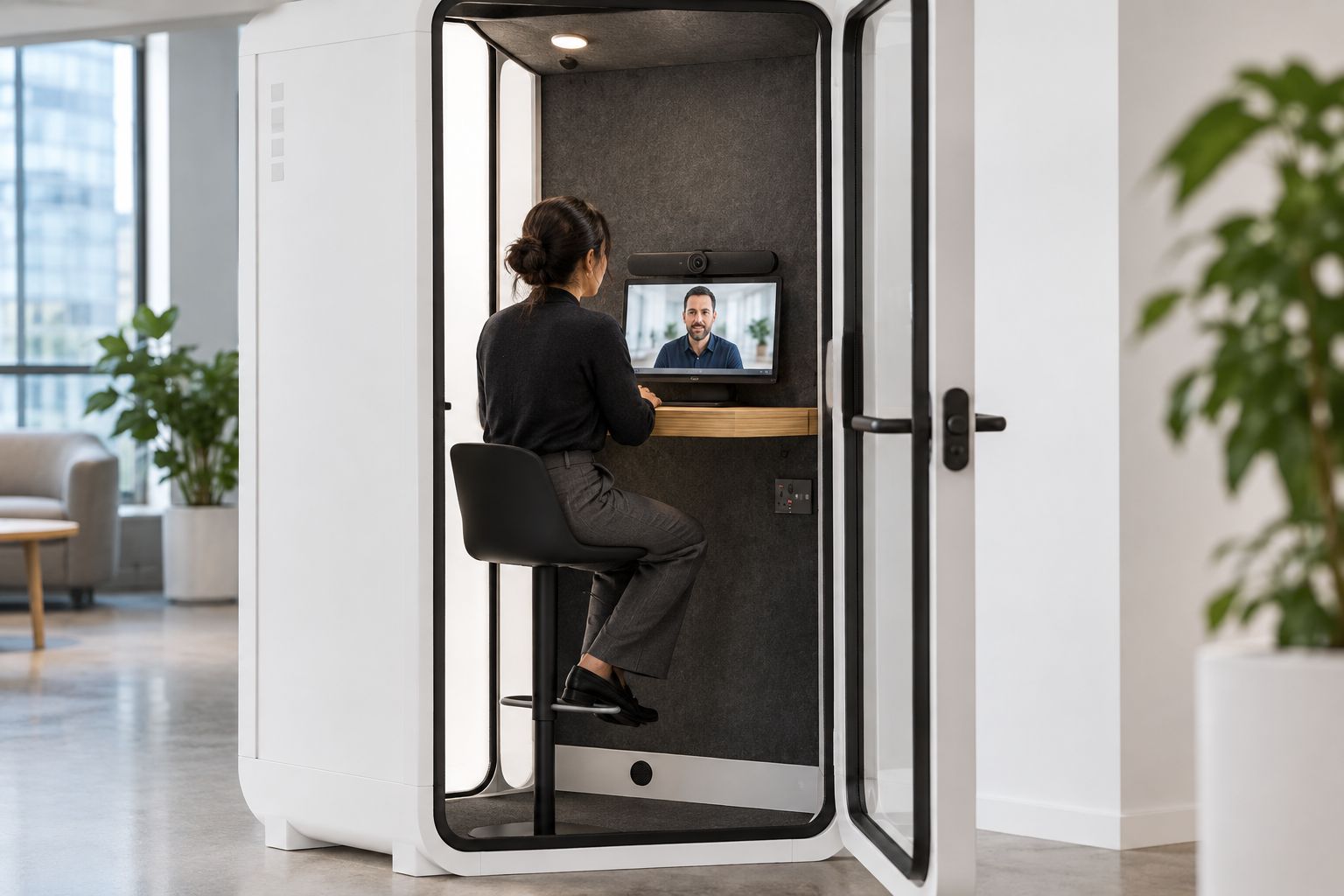
Expected result: hardware sits on the existing surface without blocking the door swing.
Sign in the device and pair it with the room account
- On first boot, the Teams Rooms device shows a sign-in screen — sign in with the resource mailbox credentials created earlier.
- Confirm the device pulls the room name and calendar feed from Exchange automatically.
- Back in the Teams admin centre, check the device status reads Healthy under Rooms & Pro Management.
Expected result: the display shows the day's bookings and a one-tap Join button for the next scheduled Teams meeting.
Test the call before rollout
- Book a test Teams meeting on the pod's own calendar.
- Sit inside with the door closed and confirm the far end can hear you without you raising your voice.
- Check camera framing at your normal seating distance — adjust the seat position if shoulders get cut off.
Expected result: the test call runs with no echo and the far end confirms clear audio on both video and mic.
Set up a Teams Rooms console for group huddles instead of solo calls
The steps above cover a one-person pod. A 2-person meeting booth or a 4-person soundproof office pod needs the same account and mailbox process but different hardware choices: a wider-angle camera that covers two or four seats, a soundbar with a broader pickup zone, and — for four or more people — a dedicated compute unit rather than an all-in-one puck device.
Register each pod as its own resource mailbox even if two pods sit next to each other. Sharing one mailbox between pods means only one can be booked at a time, which defeats the point of having separate rooms.


Troubleshooting
- Room doesn't appear in the Teams admin centre — mailbox sync can take a few hours after creation. Refresh the Rooms list before assuming the setup failed.
- Audio device not detected — reseat the USB or HDMI cable at the compute unit before treating it as a hardware fault.
- Wi-Fi drops mid-call — a metal-shelled pod can attenuate wireless signal. Run Ethernet to the console instead of relying on Wi-Fi for the call.
- Camera frames too tight in a two-person booth — check the camera's field-of-view setting first; if two people regularly sit side by side, the four-person pod gives the camera more room to work with.
- Calendar shows the wrong meeting — confirm the resource mailbox is set up as a delegate, not just invited as an attendee, on the Teams meeting.
Customize your workflow
Once one pod is running Teams Rooms cleanly, the same account-and-hardware pattern repeats for every additional pod on the floor. If you're fitting out more than a couple of rooms at once, the guide on running hybrid meetings in a soundproof pod covers how to keep call quality consistent once several pods are booked back to back on the same floor.
FAQ
How do you connect a soundproof office pod to Microsoft Teams Rooms?
You pair certified Teams Rooms hardware — a display, camera, and compute unit — inside the pod, then register the pod as a room with its own resource mailbox in the Microsoft Teams admin centre. The pod itself doesn't need any modification.
What Teams Rooms hardware fits inside a one-person phone booth?
A compact, all-in-one Teams Rooms device with an integrated camera bar and single microphone zone fits a one-person pod. Larger booths need a wider camera field of view and a separate soundbar.
Does a soundproof pod block Wi-Fi signal?
A metal-shelled acoustic pod can weaken wireless signal for anyone inside. Running Ethernet directly to the Teams Rooms compute unit avoids this rather than relying on Wi-Fi for the call.
Can one Teams Rooms licence cover multiple pods?
No — each pod needs its own resource mailbox and its own Teams Rooms licence assigned to it. Sharing a mailbox between two pods means only one can be booked at a time.
What's the difference between Teams Rooms Basic and Pro licences?
Teams Rooms Basic is managed locally on the device itself. Teams Rooms Pro adds remote management and monitoring through the Microsoft Teams admin centre, which matters once you're running more than a couple of pods.
Do you need Ethernet inside a soundproof pod for Teams Rooms?
Ethernet isn't mandatory but it's the more reliable option once the pod's shell starts weakening Wi-Fi signal. Wire it to the compute unit if the pod sits away from a strong wireless access point.
One last thing
The step that actually breaks most rollouts isn't the hardware pairing — it's forgetting to give the pod its own resource mailbox before the Teams Rooms device arrives. Set that account up first, test with one pod, then repeat the same process pod by pod rather than trying to configure a whole floor in one afternoon.


