 nl/be
nl/be



















 Productgids
How to record a podcast in an office without a studio
To record a podcast in an office without a studio, choose an enclosed room, place a microphone close to each speaker and make a test recording before starting the episode. Listen for background conversations, room echo and equipment noise; a room that works for meetings does not automatically work for recorded speech.
- Record a podcast in an office by testing the room and microphone setup before recording the full conversation.
- Give each speaker a microphone and separate recording track when your equipment supports it.
- Soundbox Store office pods provide enclosed workspace; assess the recorded sound before choosing one for podcast production.
- Reduce noise at its source rather than relying on editing to rescue unclear speech.
How do you record a podcast in an office without a studio?
- Find the quietest usable enclosed space. Listen during the working hours when you intend to record, not only when the office is empty.
- Check the room through your microphone. Record speech and silence, then play both back through headphones.
- Set up each speaker consistently. Keep microphones close, select the correct inputs and separate speakers into individual tracks where possible.
- Record a complete rehearsal. Include introductions, interruptions, laughter and any remote guest connection.
- Review the saved files before the session ends. Check that every voice is present and that the recording has finished saving.
If your voice sounds hollow despite limited background noise, consider the room's reflections. Acoustic wall panels address a different problem from choosing an enclosed recording space: sound bouncing inside the room rather than simply noise arriving from elsewhere.
Why this matters
An office podcast captures more than the conversation. The microphone also picks up the room, nearby activity and the way speakers move while talking.
Fix the recording environment before adding effects. Noise reduction cannot reliably separate an unwanted conversation from your guest's voice when both occur together. Heavy processing also changes the sound you wanted to keep.
Treat the first session as a production rehearsal, not a launch episode. A short, representative recording tells you whether the existing room is usable and which problem deserves attention first.
Choose the space around the conversation
Start with the episode format. A solo update, an interview across a table and a remote conversation place different demands on the room.
Do not choose solely by how quiet the room feels when you enter. Sit where you will speak, use the intended microphone and listen to the saved recording. This separates a promising location from a workable setup.
| Recording space | Best for | Practical advantage | Limitation to test |
|---|---|---|---|
| Enclosed office or meeting room | Occasional interviews using existing space | Gives you a room separate from the desk area | Hard surfaces, corridor noise and competing bookings |
| Single-person office pod | Solo narration or hosting a remote guest | Provides an enclosed space for the local speaker | Interior reflections and audible background equipment |
| Meeting booth | An in-person host and guest | Accommodates a shared conversation away from desks | Microphone spill between speakers and table noise |
| Open-plan desk | An informal test when no room is available | Uses the workspace already at hand | Nearby speech and interruptions remain part of the recording |
Use an open-plan desk for testing, not as your default recording location. Even a close microphone does not remove a colleague speaking nearby.
For a shared room, agree the booking before inviting guests. Include setup and file checks in the reservation so another meeting does not force you to finish abruptly.
Check the sound before moving equipment around
Make a baseline recording with the room operating normally. Keep ventilation and ordinary workplace systems in their normal state; the test needs to represent the conditions you will actually record in.
Listen for distinct problems rather than describing everything as bad acoustics:
- Outside speech: colleagues or corridor conversations audible behind the presenter.
- Room echo: a hollow or lingering quality following spoken words.
- Equipment hum: a steady background sound from equipment or building services.
- Handling noise: knocks, cable movement or contact with the microphone.
- Audio distortion: a rough or crackling sound when someone speaks loudly.
Each problem needs a different response. Move away from an audible conversation, adjust the recording position for reflections, or identify the object causing a rattle. Do not apply the same editing effect to every fault.
Keep the baseline file. Compare later tests against it using the same spoken passage and microphone position, so you can hear whether a change helped.
Set up the microphones and headphones
Give each speaker a consistent microphone position. A presenter who repeatedly turns away or leans back produces changing levels and room sound, even when the equipment stays untouched.
Place the microphone close enough to prioritise the voice, following its operating guidance. Use a pop filter where appropriate and adjust the angle if breath sounds strike the microphone directly. Check the result rather than assuming a particular distance works for every microphone.
For an in-person interview with 2 participants, use a microphone for each person when your recording equipment supports it. Recording those microphones onto 2 separate tracks gives you independent level control during editing. It does not eliminate the other person's voice spilling into each microphone.
Wear headphones while checking the signal. Loudspeaker playback can feed back into the microphones or create an audible echo during remote interviews.
Before recording, confirm:
- The software uses the intended microphone, not a laptop's built-in input.
- Every participant appears on the intended recording track.
- Headphone playback does not come through room loudspeakers.
- Normal speech and laughter do not trigger clipping indicators.
- The selected recording location has room to save the session.
Avoid changing several settings at once. If a test sounds wrong, change a single part of the setup and record again.
Rehearse the episode, not just the introduction
A quiet introduction is an incomplete sound check. Ask the host and guest to speak as they will during the actual conversation, including natural pauses, louder reactions and looking towards each other.
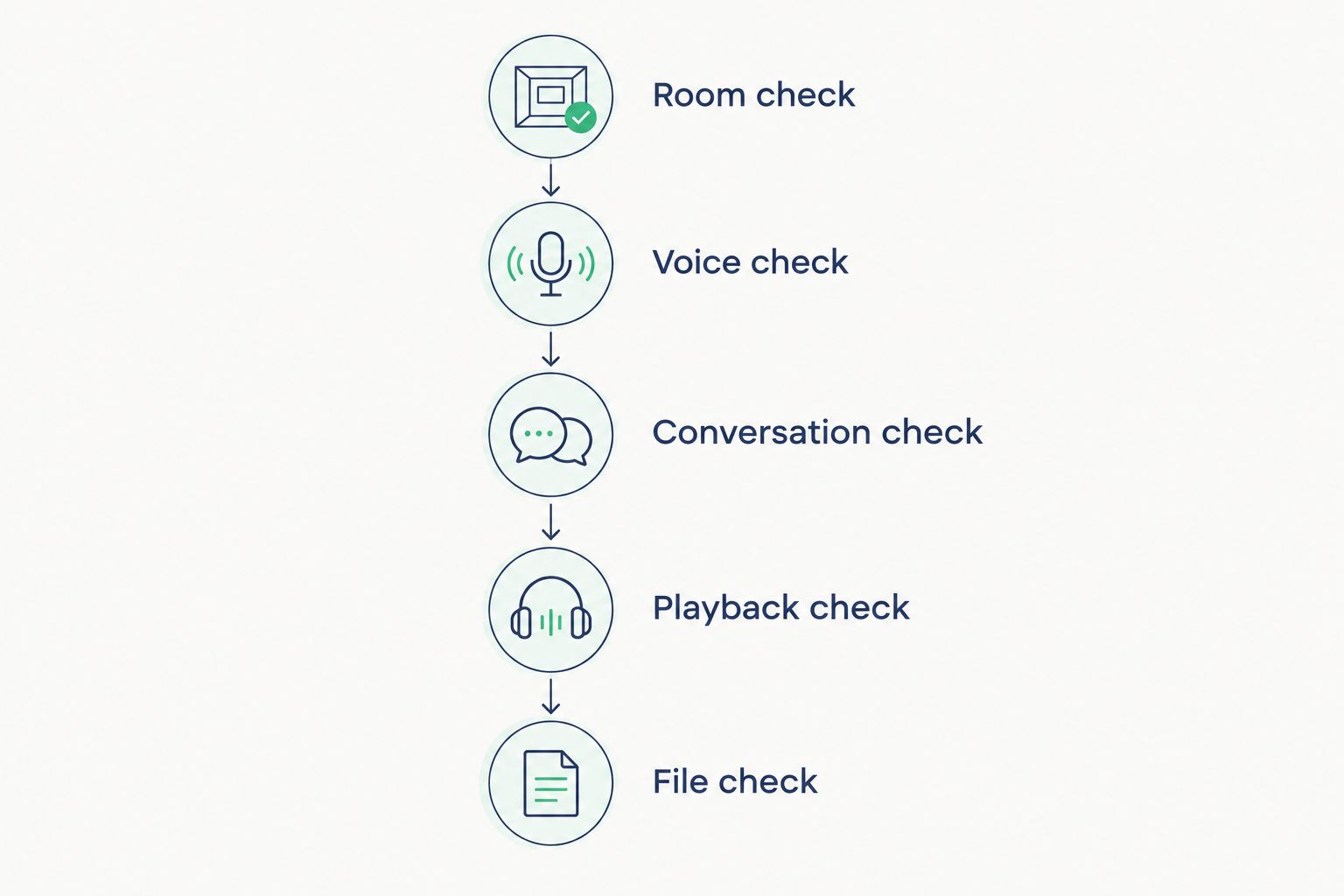
Use this sequence before recording the full episode:
- Room check: record silence while everyone remains in position.
- Voice check: have each participant speak separately.
- Conversation check: practise an exchange with both people responding naturally.
- Playback check: stop recording and listen to the saved file.
- File check: confirm the file contains every intended voice.
Listen to the playback at a comfortable level. Check the spaces between words as well as the speech itself; steady hum and nearby conversations become easier to identify during pauses.
Do not treat a moving level meter as proof of a usable recording. It confirms that a signal exists, not that you selected the right microphone or captured a clear conversation.
Make the workflow repeatable
Once the test works, write down the room, microphone inputs, seating arrangement and software settings. A repeatable setup reduces the number of decisions you need to make while a guest waits.
Separate the decision to own recording equipment from the decision to create a permanent recording space. When weighing podcast equipment versus studio rental, include room access, setup, editing and responsibility for operating the session—not just the microphone purchase.
Assign someone to watch the recording during the conversation. The host cannot always notice an input disconnecting while concentrating on an interview. For a solo episode, check the recording status between sections.
For remote interviews, ask each participant to use headphones and make a connection test before the scheduled conversation. Where the recording system supports local participant recordings, confirm that the files finish saving or uploading before anyone closes the session.
A repeatable process still needs a sound check. A different guest, moved desk or busy corridor changes the conditions, even when the saved software settings remain identical.
When does an office pod make sense for podcast recording?
An office pod addresses the need for an enclosed workplace space. Recording quality still depends on the microphone, the sound inside the enclosure and activity around it.
Soundbox Store office pods suit workplace teams seeking an enclosed space for spoken-word recording, subject to a microphone test. They should not be treated as a substitute for checking the actual recorded result.
The Quell Office Pod Solo is a single-person option for a local host recording narration or speaking with a remote guest. The Office Phone Booth Quell - 2 Person provides a different format for an in-person conversation.
| Soundbox Store option | Best for | Relevant supplied detail | Recording limitation |
|---|---|---|---|
| Quell Office Pod Solo | A solo presenter or local host with a remote guest | Designed for 1 person and private calls | Not an in-person interview space for both host and guest |
| Office Phone Booth Quell - 2 Person | A host and guest recording together | Acoustic enclosure designed for 2 people | Separate microphones still require a spill and reflections test |
The supplied descriptions establish workplace use and occupancy, not podcast recording performance. Neither description establishes how your microphone will capture speech inside the booth.
Before choosing either format, request a representative recording test using your intended equipment. Listen for external noise, internal reflections and the background sound present during normal operation. Choose on the recorded result, not the word soundproof.
Why office recording quality varies
A setup that works for narration does not automatically work for a lively interview. These factors explain why the same room produces different results:
- Nearby activity: conversations, doors and shared equipment change the background sound.
- Reflective surfaces: walls, glazing and tables affect the sound captured alongside the direct voice.
- Microphone position: movement changes the balance between speech and the surrounding room.
- Speaker behaviour: laughter, overlapping answers and turning away affect levels and clarity.
- Recording configuration: input selection, track routing and processing alter what reaches the saved file.
- Session format: remote and in-person interviews introduce different playback and microphone-spill problems.
Change the source of the problem first. If the guest sounds distant, correct the microphone position before adding more processing. If corridor speech remains intelligible, reconsider the location or recording time.
Edit without hiding recording faults
Keep an untouched copy of the original recording before editing. Work from a duplicate so you can reverse a processing decision without losing the source material.
Start with the conversation: remove unwanted starts, long interruptions and repeated passages. Then balance voices, make restrained tonal adjustments and check any noise reduction against the untreated recording.
Stop processing when speech starts sounding less natural. Metallic consonants, a pulsing background or words disappearing at the ends of sentences are reasons to revisit the effect settings.
Listen to the finished export through headphones and ordinary playback equipment. Check the beginning, transitions and ending, then confirm the exported file—not only the editing session—contains the complete episode.
FAQ
Can I record a podcast in an office without a studio?
Yes. Use an enclosed room, position microphones consistently and review a saved test recording before starting the episode. Check for nearby speech, reflections and equipment noise under normal working conditions.
Can I use a laptop microphone for an office podcast?
You can make a test recording with a laptop microphone, but it also captures the surrounding room. Listen to the saved result before deciding whether it is suitable for your episode.
Does each podcast guest need a microphone?
A separate microphone for each in-person speaker gives you more control when your recording system supports separate tracks. Check microphone spill as well as individual voice levels during the rehearsal.
Will an office pod remove all noise from a podcast?
No. An office pod is not a guarantee of a silent recording. Test external noise, internal reflections and normal operating sounds through the microphone you intend to use.
Can noise reduction fix office conversations in the background?
Noise reduction cannot reliably remove a background conversation that overlaps the speaker you want to keep. Choose a quieter location or recording time before relying on editing.
Can a Soundbox Store office pod replace a podcast studio?
A Soundbox Store office pod provides an enclosed workplace space, not a verified replacement for a recording studio. Assess it with your microphones and episode format before choosing it for podcast production.
One last thing
Keep the pauses in your test recording. Speech can mask a background problem that becomes obvious as soon as the presenter stops talking.
Before guests leave, open the saved files and play a passage from each participant. Discovering a missing voice while everyone is still present gives you a chance to record it again.


