 nl/pt
nl/pt


















 Productgids
Connect an Office Pod to Google Calendar: Step-by-Step
Booking a soundproof pod still works like sticky notes on a door in most offices: someone glances through the glass, shrugs, and takes the call in the stairwell instead. Add the pod as a resource inside Google Calendar and the booking happens exactly the way a meeting room booking does — searchable, visible to the whole team, and impossible to double-book by accident.
- Connect an office pod to Google Calendar by adding it as a bookable resource in the Google Workspace admin console, not through the pod itself.
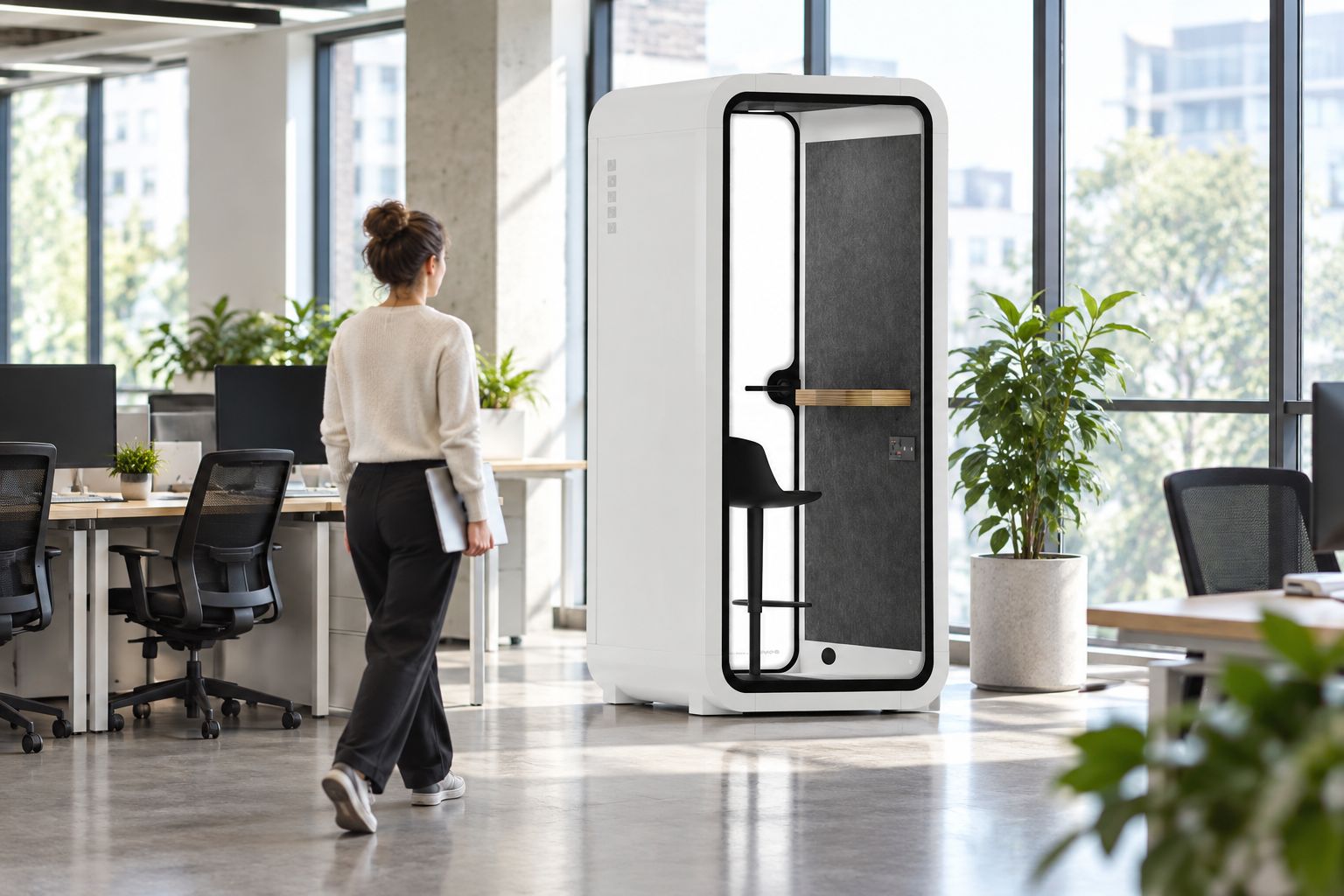
- A Quell Office Pod Solo booked as a resource shows as busy the moment someone adds it to an invite, the same as a meeting room.
- Teams without Workspace admin access can still schedule pod use with a shared, dedicated calendar per pod.
- Booking rules (visibility, auto-decline, time limits) stop one person from holding a pod all day.
Why this matters
A soundproof pod that isn't on the calendar gets treated as first-come, first-served, which means the loudest voice in the office wins it, not the person who actually booked focus time. Once the pod sits inside Google Calendar as a resource, anyone creating an invite can search for it, see whether it's free, and add it in the same step as adding a colleague. No app, no separate booking system, no walking over to check.
This matters more as pod counts grow. One Quell Office Pod Solo is easy to manage by memory. Five pods across two floors is not, and that's where calendar-based booking pays for itself in reduced back-and-forth.
Before you start
- You need Google Workspace admin access (or a colleague who has it) to register the pod as a proper calendar resource — a personal Gmail account cannot create resource calendars.
- Know which building and floor the pod sits on if your organisation manages multiple sites in Workspace; resources are grouped by building.
- The gotcha: if you set the resource capacity higher than the pod actually seats, Google Calendar will let people invite more attendees than the pod can hold, and nobody gets an error for it. Set capacity to match the pod exactly before you open bookings.
Add the pod as a bookable resource
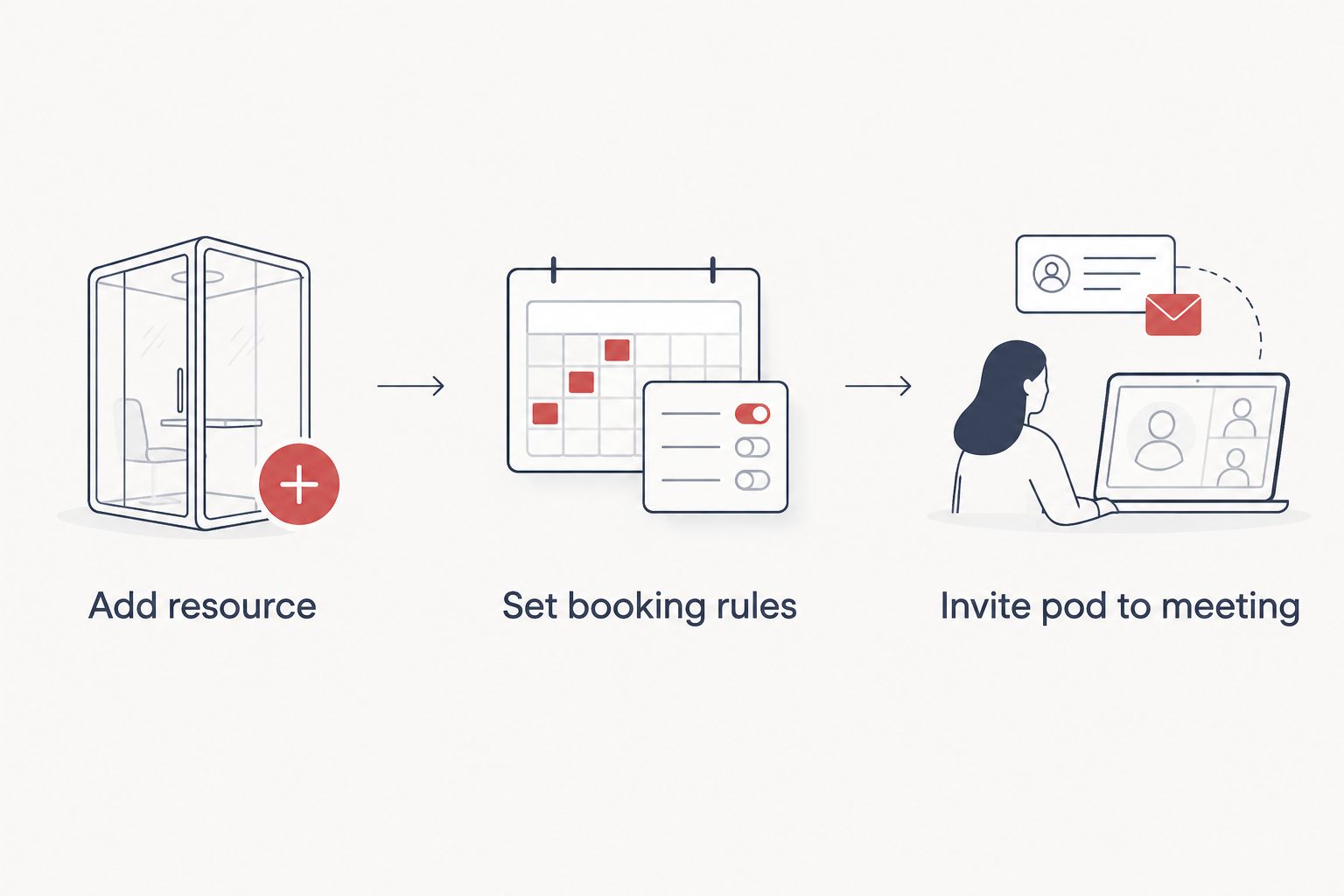
- Sign in to the Google Admin console with an account that has admin rights.
- Go to Buildings and resources under Calendar in the admin settings.
- Select Add a resource and choose Room as the resource type — pods use the room category even though they're freestanding units.
- Name the resource clearly, for example "Quell Solo Pod — 2nd Floor", so it's identifiable in search results next to actual meeting rooms.
- Set Capacity to the pod's actual seating — 1 for a solo pod, 2 for a two-person booth.
- Save the resource.
Expected result: the pod now appears when any user in your Workspace domain searches "Rooms" while creating a calendar event.
Set booking rules for the pod
- From the same resource entry, open Booking rules.
- Turn on Automatically decline invitations if the resource is already booked for that slot — this is what actually prevents double-booking.
- Set a maximum booking duration if you want to stop one person reserving the pod for an entire day.
- Under Visibility, set the resource to visible across the domain (or restrict it to a specific organisational unit if the pod is department-only).
Expected result: two people trying to book the same pod at the same time get an automatic decline on the second request instead of a silent conflict.
Invite the pod to a meeting
- Create a new event in Google Calendar as normal.
- Click Rooms and search the pod by name.
- Add it the same way you'd add a person — it now shows as an attendee with its own busy/free status.
- Check the pod's calendar tile turns from white to shaded once added; that confirms the booking registered.
Alternative: a shared calendar for teams without Workspace admin
Not every business runs Google Workspace with resource management switched on, and asking IT to enable it for one pod can take weeks. A simpler workaround: create a second calendar in Google Calendar (Settings > Add calendar > Create new calendar), name it after the pod, and share it with the team using See all event details or Make changes to events permission.
This loses the automatic-decline protection of a true resource calendar, but for a single pod in a small office it's enough to stop the worst overlaps, and it needs zero admin console access.
| Pod | Capacity | Best for calendar booking | Verdict |
|---|---|---|---|
| Quell Office Pod Solo | 1 person | Solo calls and focus blocks | Buy — book as a resource, one at a time |
| 2-person meeting booth | 2 people | Paired reviews and 1:1s | Buy — set capacity to 2 exactly |
| Quell Flex | 1 person, relocatable | Teams that move pods between floors often | Skip the resource route if the pod relocates weekly; use a shared calendar instead so the location note stays editable |
Troubleshooting
- The pod doesn't show up in the Rooms search. The resource visibility is likely restricted to the wrong organisational unit — check it under Buildings and resources.
- Double bookings still happen. Someone is inviting the pod by typing its name as a guest email rather than adding it through Rooms, which skips the auto-decline rule entirely.
- The pod shows busy but is actually empty. A booked meeting was cancelled on someone's personal calendar without removing the pod from the invite — the resource stays attached until the whole event is deleted, not just declined.
- Team members in different time zones book overlapping slots. Confirm each person's Calendar is set to their local time zone under Settings; a shared resource calendar always displays in the viewer's own zone, so a mismatch usually means someone's account setting is wrong, not the booking itself.
Customise your workflow
Once booking works, the next layer most offices add is physical access control — deciding who can actually open the pod door during a booked slot. That's a separate system from the calendar and worth planning on its own; see the Office Pod Smart Lock product page for the access options available, and keep the two systems distinct rather than assuming a calendar booking unlocks anything automatically.
For teams managing several pods across a floor, the scheduling logic above scales the same way whether it's one pod or ten — the pod booking and scheduling guide covers rota patterns and peak-time rules once you're past the basic setup.


FAQ
What is the best way to connect an office pod to Google Calendar?
Register the pod as a resource in the Google Workspace admin console under Buildings and resources, then it books exactly like a meeting room. This gives you automatic decline on double bookings, which a shared calendar alone does not.
Can I book a soundproof pod the same way I book a meeting room?
Yes, once the pod is added as a resource type it appears in the same Rooms search used for meeting rooms. Attendees add it to an invite and see its busy or free status immediately.
How do I stop pods being double-booked?
Turn on automatic decline in the resource's booking rules so a second invite for an already-booked slot is rejected instead of silently overlapping. Manually typing the pod's name as a guest email bypasses this, so train staff to add it through Rooms.
Do I need Google Workspace to add a pod as a resource?
Yes, true resource booking requires Workspace admin access to create the Buildings and resources entry. Teams without admin access can use a shared secondary calendar instead, though it lacks automatic decline.
Can a small team without an IT admin still schedule pod usage?
Yes, create a dedicated calendar for the pod under Settings and share it with the team using edit permission. It requires no admin console access, only a standard Google account.
How do I stop one team monopolising the pod all day?
Set a maximum booking duration in the resource's booking rules so a single invite cannot reserve the whole day. Combine this with domain-wide visibility so every team can see when slots are actually free.
One last thing
The setting most teams skip is maximum booking duration, and it's the one that causes the most complaints. Without it, one person blocking a solo pod from 9am to 5pm for "focus time" is technically a valid booking — the calendar has no opinion on fairness unless you set the limit yourself.


