 no/gb
no/gb



















 Produktguide
How to connect a soundproof office pod to Condeco booking
Instead of manually coordinating who can use an office pod, have your Condeco administrator configure it as a bookable space and test the reservation workflow before opening it to colleagues. An office pod–Condeco booking integration concerns the booking record; it does not establish a connection to the pod’s locks, lighting or occupancy hardware.
- Plan office pod–Condeco booking integration around a bookable space, not an assumed hardware connector.
- Soundbox Store office pods provide private workspaces; confirm Condeco configuration separately with your booking administrator.
- Match each physical pod to one booking identity, then test reservations, changes and cancellations.
- Keep booking status separate from physical occupancy and door access.
Why this matters
A calendar invitation and a reserved pod are different things. Your workflow needs to establish that the organiser has reserved the physical space, not merely invited colleagues to a meeting.
Soundbox Store office pods suit workplace teams seeking private spaces for calls and small meetings. For example, the Office Phone Booth Folio is described as a one-person booth for private calls, Zoom meetings and focused work. Its booking record should reflect that use rather than present it as a general meeting room.
Keep three responsibilities separate:
- Physical space: the pod and its intended use.
- Booking administration: the resource record, permissions and reservation rules.
- Workplace operations: naming, user instructions and handling booking problems.
The advantage of this approach is a defined reservation process. Its limitation is equally clear: a reservation alone does not prove that someone is inside the pod or control who opens its door.
Before you start
- Arrange administrator access. Identify the person authorised to configure spaces in your Condeco environment. If your organisation connects booking software to another calendar system, involve the administrator responsible for that connection too.
- Prepare a pod record. Gather the physical location, intended use, product capacity, proposed booking name and responsible workplace contact. Use the actual product information rather than copying settings from an unrelated meeting room.
- Resolve the calendar-ownership question first. Ask which system will own the pod’s reservations and whether an existing resource already represents it. Do not create a second independent booking record for the same physical space.
Gate the work here: ask your administrator to confirm the supported configuration route, required permissions and applicable booking features before changing anything. Use your organisation’s current Condeco instructions for exact screen labels; the steps below define the configuration decisions and acceptance checks, not an assumed menu sequence.
Pod identity and booking ownership
Start with the physical pod, then decide how people will find and reserve it. This prevents a technically valid booking from pointing colleagues towards the wrong space.
- Locate any existing record. Ask facilities and booking administrators whether the pod already appears in a room directory, calendar or workplace booking system. Record the existing identifier before creating anything new.
- Choose a recognisable name. Combine a stable pod identifier with its workplace location. Avoid names that depend on a nearby team remaining in the same place.
- Assign one reservation owner. Document which system holds the authoritative booking and how any connected calendar is expected to reflect it. Have the relevant administrators approve that relationship.
- Record the intended use. Describe whether colleagues should reserve the pod for individual calls, focused work or meetings. Keep the description consistent with the actual product.
- Assign a workplace contact. Give colleagues a clear route for reporting a booking mismatch or an unavailable space. Keep this separate from the person who handles software administration.
Expected result: you have one agreed identity for the physical pod, one documented reservation owner and a named contact for operational problems.
Match the booking description to the pod
Soundbox Store offers both individual phone booths and meeting booths. These serve different booking needs; do not use a shared description that makes every booth appear interchangeable.
| Pod | Best for | Useful distinction | Limitation for booking |
|---|---|---|---|
| Office Phone Booth Folio | Individual private calls and focused work | Its supplied description identifies a one-person workspace | Do not present it as a shared meeting booth |
| Office Phone Booth Quell - 2 Person | Private meetings between two people | Its supplied description identifies a two-person meeting booth | Do not present it as a larger meeting room |
Use the product’s stated capacity as a description of the space. Do not confuse that with the total number of meeting invitees, which can include remote participants.
Condeco space configuration
Have the Condeco administrator translate the agreed pod record into the configuration supported by your environment. Do not assume that every booking feature is enabled or that the same administrative screens apply across deployments.
- Select the supported space category. Ask the administrator which bookable-space category fits a pod in your organisation’s setup. Confirm how colleagues will discover that category before continuing.
- Create or update the agreed record. Use the approved identity, location and description. If an existing record already represents the pod, update that record rather than adding a parallel reservation route.
- Enter supported descriptive details. Include the intended use and product capacity wherever your configuration supports those details. Describe equipment only when it is actually present and confirmed.
- Set the intended booking audience. Have the administrator apply the access arrangements supported by your environment. Check the experience with an ordinary user account, not just an administrator account.
- Agree reservation rules. Decide whether your workplace needs booking windows, duration limits or approval arrangements. Ask the administrator which requirements the current configuration supports before announcing them to users.
- Document calendar behaviour. If another calendar is involved, record how reservations, changes and cancellations should move between systems. Treat each direction as a separate acceptance test.
Expected result: the pod has a configured booking record that matches the physical space, with documented permissions and reservation behaviour.
A useful description answers practical questions without promising unverified features. Tell colleagues where the pod is and what it is intended for; do not label it as having automatic check-in, remote unlocking or occupancy detection unless those functions have been separately confirmed.
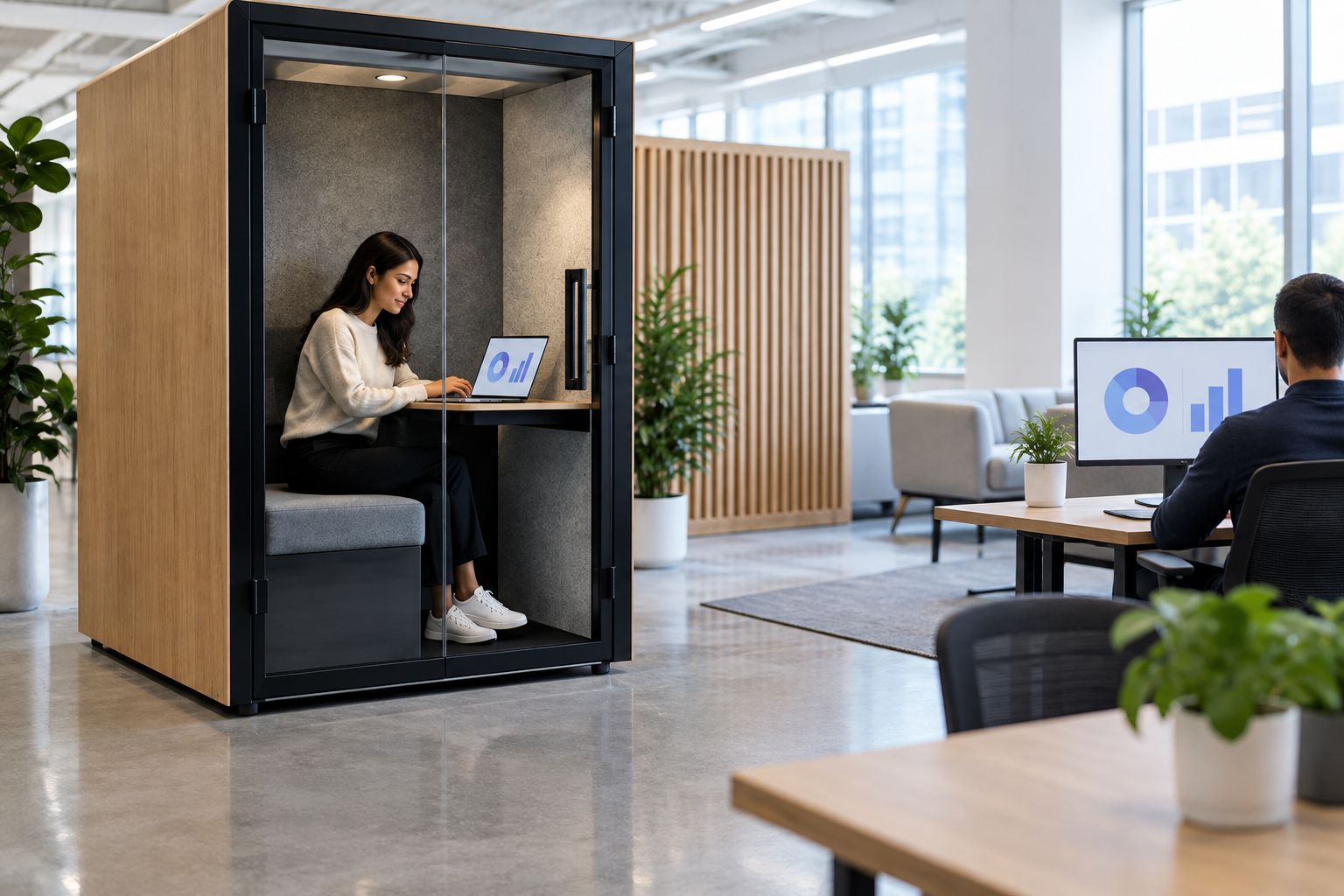
Reservation testing and release
Test the workflow from the user’s perspective before publishing instructions. An administrator seeing the pod in a configuration screen is not evidence that colleagues can reserve it correctly.
- Find the pod as an ordinary user. Search through the booking route your organisation intends colleagues to use. Confirm that the location and description distinguish it from neighbouring spaces.
- Create a short test reservation. For example, reserve a 15-minute session using a clearly identified test event. Confirm the result in the system designated as the reservation owner.
- Check an overlapping request. Use another authorised test account to request the same space during the reserved period. Compare the outcome with the conflict-handling behaviour agreed with your administrator.
- Change the test reservation. Move the start time by 5 minutes, then check every booking interface included in the agreed workflow. Record where the change appears and where it does not.
- Cancel the reservation. Check that the cancellation produces the expected result in the authoritative record and any confirmed connected calendar. Do not rely only on the organiser’s personal calendar view.
- Repeat with a longer session. Use a 30-minute test booking to check the same workflow against your intended reservation rules. These durations are test examples, not product requirements or Condeco defaults.
- Publish the operating instructions. Tell colleagues where to book, how to identify the pod, how to change or cancel a reservation and whom to contact when the booking does not match reality.
Expected result: a normal user can complete the agreed reservation lifecycle, and the team has recorded the outcome of each test.
Keep a short acceptance log containing the account used, action taken, expected result and observed result. That gives administrators a reproducible problem report if something fails, rather than a general complaint that booking is broken.
Change or cancel a pod booking
A second workflow deserves its own check: updating an existing reservation. Creating a booking successfully does not demonstrate that later changes will follow the same route.
Best for: teams whose calls and meetings frequently move. Start changes from the booking interface approved by your administrator, then verify the authoritative reservation record.
- Open an existing test reservation through the agreed user route.
- Change its time and check whether the physical pod remains reserved for the intended session.
- If a connected calendar forms part of your setup, verify the updated time there separately.
- Cancel the session through the approved route and confirm the expected release behaviour.
- If recurring reservations are supported and required, test a single occurrence separately from the whole series before publishing guidance.
The benefit is a repeatable process for rescheduled meetings. The trade-off is that each additional booking interface creates another place where changes need checking.
Do not create a replacement booking as the default fix for an unclear update. First establish what happened to the original reservation, then follow the administrator’s correction process.
Troubleshooting
The pod does not appear for colleagues
Check the ordinary user’s access, selected workplace location and available space categories with the administrator. Compare the same search using a known working account; this separates a user-access problem from a resource-record problem.
Do not solve visibility by creating another pod record. Confirm why the existing record is missing from that user’s booking route.
Two records appear to represent the same pod
Compare their physical descriptions, identifiers and reservation ownership. Ask the administrator to identify the authoritative record and manage any consolidation, including existing reservations.
Avoid deleting either record until the administrator has checked its bookings and connections. The correction must preserve a clear reservation history and user instructions.
A meeting invitation exists, but the pod is not reserved
Inspect the booking outcome in the authoritative reservation record. A meeting on an organiser’s calendar is not, by itself, confirmation that the space was accepted.
Have the administrator check the resource association and the configured reservation process. Repeat the test using the approved booking route.
A change or cancellation appears in only one place
Record where the action originated and which interface failed to reflect it. Ask the administrator to check the configured calendar relationship and reproduce the same action with a test reservation.
Do not assume a particular synchronisation delay. Use the behaviour documented for your organisation’s connection when deciding whether the test has passed.
The pod is occupied despite appearing unreserved
Treat this as a workplace-use issue unless a confirmed occupancy connection says otherwise. Check whether colleagues are using the booth without reserving it or misunderstanding the booking instructions.
A calendar record is not physical occupancy evidence. Clarify the walk-in policy rather than promising that booking software can detect someone inside.
Customise your workflow
Expand only after the basic reservation lifecycle works. Soundbox Store office pods provide the physical workspace; booking rules need to reflect how your organisation intends people to use it.
- Individual call spaces: decide whether colleagues should reserve every session or whether walk-in use is permitted. Explain how users should handle a forthcoming reservation.
- Shared meeting booths: make the intended meeting use clear and distinguish people inside the booth from remote attendees.
- Multiple pods: use consistent names and descriptions, but keep a distinct booking identity for each physical space.
- Optional connected functions: evaluate displays, check-in, occupancy reporting or access control as separate projects. Confirm support and responsibilities before adding them to user instructions.
Keep the first release focused on finding, reserving, changing and cancelling the space. Additional automation is useful only when the team can explain what triggers it, what it changes and how failures are handled.
FAQ
How do I connect an office pod to Condeco booking?
Have your Condeco administrator configure the physical pod as a bookable space using the route supported by your organisation. Agree its identity, reservation ownership and permissions, then test booking, changes and cancellation with an ordinary user account.
Does a Soundbox Store pod include a native Condeco connector?
Do not treat a Soundbox Store pod purchase as confirmation of a native Condeco connector. Confirm any software or hardware connection separately with the relevant suppliers and your booking administrator.
Does an office pod need connected hardware to plan a booking workflow?
A booking workflow can be planned around a record representing the physical space, separately from connected hardware. Confirm how your Condeco environment supports that record before configuration.
Can a Condeco reservation automatically unlock the pod?
Do not assume that a Condeco reservation unlocks a pod. Booking and door access are separate functions unless a specific supported connection has been confirmed.
How should I test an office pod booking integration?
Test discovery, reservation, overlapping requests, changes and cancellation using ordinary user accounts. Check each result in the authoritative reservation record and any confirmed connected calendar.
Does a booked pod mean somebody is inside it?
No, a reservation records intended use rather than proving physical occupancy. Treat occupancy reporting as a separate function that needs its own confirmed data source and configuration.
One last thing
Test cancellation before you announce the pod. A successful reservation proves only the start of the workflow; cancellation checks whether an abandoned session stops blocking the space according to your agreed process.
Make that acceptance check part of every new pod record, not just the first one.


