 de/ch
de/ch



















 Produktleitfaden
How to connect a soundproof office pod to Asana task boards
Instead of manually chasing actions after every pod meeting, set up an office pod–Asana integration around a shared task board so each action has an owner and a deadline. This guide connects your meeting process to Asana; it does not connect the pod’s hardware, occupancy or booking system.
- Build an office pod–Asana integration around meeting actions, not an assumed hardware connection.
- Soundbox Store provides private workspaces; Asana records tasks, owners and deadlines.
- Keep pod reservations in your booking system and link relevant records from Asana.
- Test meeting follow-ups and facilities requests separately before extending the workflow.
Why this matters
A private meeting space and a task board solve different problems. The pod provides the setting; the board records what someone must do afterwards. A booking confirms a reservation, not completion of the work discussed inside.
Soundbox Store office pods suit teams seeking private workspaces; Asana tracks the work discussed inside. For individual calls, the Office Phone Booth Folio is described as a one-person booth for private calls, video meetings and focused work. The workflow below does not depend on that product having any connected hardware.
Start with a specific use case: a project lead holds a review in a pod and needs to assign the resulting actions. Keep the reservation in your existing booking process, then capture the actions in Asana rather than copying the whole meeting into another system.
Before you start
- Asana access: use an existing project where you can add tasks, edit task details and organise sections. Ask the project owner to make structural changes if your permissions do not allow them.
- Meeting materials: have the agenda, relevant project references and your existing pod reservation record ready. Use a neutral room identifier rather than putting sensitive meeting details in task titles.
- The gotcha: this is a task-management workflow, not a verified device connection. Moving a card will not reserve a pod, detect occupancy or operate a lock; those functions require separately verified systems and connections.
Agree who records actions before the meeting begins. Without that responsibility, a well-organised board still leaves decisions sitting in someone’s notes.
Configure your Asana board
Use your existing team project when meeting actions belong to that project. Create a separate facilities project only when the people managing pod requests need a different workspace or different access.
Board structure
- Open the agreed Asana project and select Board. Work in the project where the resulting tasks should remain, rather than building a temporary board that someone must later copy.
- Use Add section to create sections named Captured, Ready, In progress and Review. These are suggested section names for this workflow, not preset Asana statuses.
- Define Captured as an action that still needs clarification. Define Ready as an action with an owner, a deadline and an expected result.
- Define In progress as work that has started. Define Review as work awaiting confirmation from the person responsible for accepting it.
- Add a reference task explaining those definitions. Keep the instructions short enough for someone joining the project to understand without a separate briefing.
Expected result: your board shows the difference between an unfinished note and an actionable assignment. A card should not reach Ready simply because someone mentioned it during a meeting.
Do not use board sections to represent whether a pod is occupied. Task progress and room use are separate records, and combining them creates misleading information.
Task details
- In Captured, select Add task and write an action-led title, such as Prepare revised project brief. Avoid titles such as Pod meeting notes when the task represents an individual deliverable.
- Open the task and complete Assignee with the person responsible for the result. Record contributors in the description rather than leaving ownership unclear.
- Set Due date to the agreed delivery date. Do not automatically use the meeting date: the discussion and the deadline are different events.
- In Description, record the expected result, the relevant decision, a neutral pod identifier and the source reference. Include only the context needed to complete the task.
- Move the card to Ready once the owner has enough information to begin. Leave unresolved questions in Captured until someone answers them.
Expected result: each Ready card tells its owner what to deliver, when to deliver it and where to find supporting context.
Use 1 task per action as a starting rule. A meeting can produce several tasks, but a single task should not hide unrelated deliverables with different owners or deadlines.
Configure the meeting handover
The handover is the practical connection between your office pod and Asana. It is a repeatable working process, not an electronic connection to the booth.
Action capture
- Before the meeting, open the relevant project and locate existing tasks connected to the agenda. Update those records rather than creating fresh cards for work already being tracked.
- During the discussion, capture each new action in Captured. Write the intended result first; add background only where the owner needs it.
- Before leaving the pod, confirm the owner and deadline for each agreed action. Resolve unclear wording while the people who made the decision are still present.
- Add the reservation reference only when it helps trace the discussion. Keep booking amendments in the booking system rather than treating a task comment as a room change.
- Move fully defined actions to Ready. Leave tentative ideas in Captured with a clear question for the person who must clarify them.
Expected result: the meeting ends with assigned work rather than a transcript that someone must interpret later.
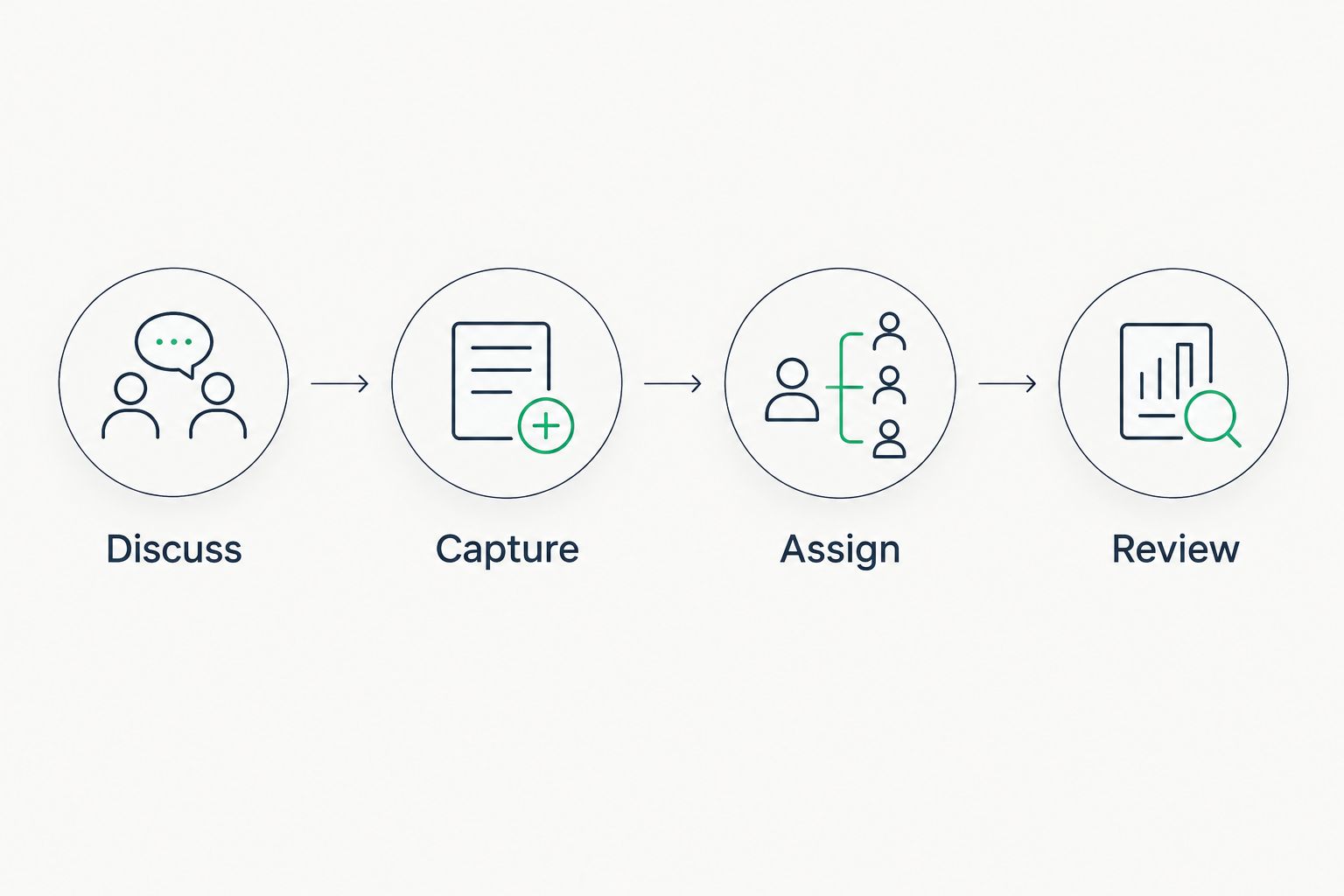
A project review is a useful starting point because it has a clear handover: discuss the work, agree the next action, assign responsibility and track delivery. The same sequence works for a private call when the call produces follow-up work.
Progress and completion
- Ask the assignee to move the card to In progress when work begins. Keep progress comments on the existing task so the discussion stays attached to the deliverable.
- Move work to Review when it needs acceptance. Add the result or a reference to it, together with the specific decision required from the reviewer.
- Confirm the expected result before marking the task complete. Finishing the meeting is not evidence that its actions are finished.
- If the discussion changes the scope, update the existing task’s description and deadline. Explain the change in a comment so the owner can distinguish the new agreement from the original request.
Expected result: task status reflects the work itself, not the date of the conversation that created it.
Choose a 10-minute review as an initial team habit, not a performance benchmark. Use that review to resolve unassigned actions, unclear deadlines and cards waiting for acceptance; adjust the time to suit your workload.
Choose the right workflow for each request
Meeting follow-ups and pod-related facilities requests both fit on task boards, but they need different handling. Keep them separate when the owners, context or access requirements differ.
| Workflow | Best for | Advantage | Limitation |
|---|---|---|---|
| Meeting-action board | Project leads tracking decisions and deliverables | Keeps follow-up work beside the project it belongs to | Does not reserve the pod or report its condition |
| Facilities-request board | Workplace teams handling reported pod issues | Gives each request an owner and a visible progress record | Depends on someone reporting the issue; it is not occupancy monitoring |
Use the meeting-action board for deliverables and the facilities-request board for the workspace. Neither replaces a booking system.
Soundbox Store supplies acoustic office pods and meeting booths; do not treat the physical workspace as the source of a software event without a verified connection. For the reservation side of the process, see how to manage pod booking and scheduling.
Track a facilities request whenever someone reports a pod issue
The adjacent workflow starts with a report rather than a meeting decision. Use it for requests such as a cleaning follow-up or a reported problem with equipment used inside the pod; this guide does not cover repairs or installation.
- Open the facilities project, select Add task and describe the reported issue without diagnosing an unverified cause.
- In Description, include the pod identifier, when the issue was noticed and the person to contact for clarification. Keep unrelated meeting content out of the report.
- Set Assignee to the person responsible for coordinating the response. Record a follow-up date under Due date so the request has a clear next checkpoint.
- Update the same task as the response progresses. Add the outcome before marking it complete rather than closing it merely because the report was acknowledged.
Expected result: the workplace team can trace the report from capture to response without searching through meeting-action cards.
This variant remains a human-reported workflow. Do not label the board as a live condition dashboard, and do not assume that closing the request changes a reservation or updates equipment.
Test the workflow before sharing it
Create 2 test tasks: a meeting action and a facilities request. Use fictional, non-sensitive content so the test checks the process without exposing a real discussion.
- Open each task as the person expected to act on it. Confirm that the project and supporting references are accessible.
- Check that the assignee understands the expected result without asking the meeting organiser to reconstruct the conversation.
- Move each card through its agreed sections and confirm that the team interprets those sections consistently.
- Change the test reservation separately. Confirm that nobody expects the Asana task to update automatically.
- Complete the test tasks only after recording their outcomes.
The test passes when the workflow is understandable, not merely when a card appears. Correct unclear ownership and missing context before adding more teams or more pods.
Troubleshooting
Actions appear twice
Search the project before creating a new card. Keep one task for the same deliverable, move useful context into it and close the redundant record with an explanation. Repeated meetings should update existing work, not recreate it.
The assignee cannot open the task or its reference
Check project membership and the sharing settings of the linked material separately. Access to an Asana task does not establish access to every document mentioned inside it; use references the intended recipient can actually open.
A due date is mistaken for a reservation
Rename the task around the deliverable and state the booking reference separately in Description. Keep room timing in the booking system, and use Due date for the action’s deadline.
Cards reach Review without a result
Add a clear acceptance requirement to Description. Ask the assignee to attach or reference the completed work before requesting review, rather than using the section move as a substitute for delivery.
A booking change does not update Asana
That is expected in this manual workflow. Update the task when the change affects its work, owner or deadline; use a separately verified software connection if your organisation needs automatic updates.
Customise your workflow
Once the basic handover works, standardise the task description. Suggested headings are Expected result, Decision, Pod reference and Supporting material. These are text headings you write, not additional Asana settings.
Expand by use case rather than by adding every pod event to the board. A recurring project review needs deliverable tracking; a facilities request needs response tracking. Creating tasks for events that require no action adds administration without clarifying responsibility.
Before adding automation, define the source event, the destination task and the person responsible when the connection fails. Verify the actual booking software’s supported connection and update behaviour before relying on it. Do not assume that an office pod–Asana integration includes automatic booking changes or device control.
FAQ
Can I connect a Soundbox Store office pod directly to Asana?
This guide connects the pod’s meeting workflow to Asana, not the pod hardware. A direct hardware connection requires separately verified product and software capabilities.
Will an Asana task reserve an office pod?
An Asana task in this workflow does not reserve an office pod. Make and change reservations through your existing booking process, then reference the booking where it helps the task owner.
What should an office pod meeting task include?
Include the expected result, an assignee, a due date and the context needed to act. Add a neutral pod identifier or reservation reference only when it helps trace the discussion.
Should meeting notes and actions be the same task?
Track individual deliverables as individual tasks rather than hiding them inside a general meeting-notes task. Reference the supporting notes so each owner can find the relevant context.
Can I track pod cleaning requests in Asana?
You can record a reported cleaning request as an Asana task with an owner and a follow-up date. Keep facilities requests separate from project deliverables when different teams manage them.
Do booking changes automatically update this Asana board?
Booking changes do not automatically update the manual workflow described here. Update affected tasks yourself unless your organisation has separately verified and configured a software connection.
One last thing
A meeting can finish while every action it created remains unfinished. Keep that distinction visible: end the reservation through your booking process, and complete each Asana task only when its agreed result is delivered.
Start with the board you already use. A clear owner and an actionable description matter more than adding a connection that nobody is responsible for maintaining.


