 en/us
en/us

















 Product guide
How to connect a soundproof office pod to Zapier automations
Instead of manually sending a message whenever someone books an office pod, connect its booking calendar to Zapier so each new reservation creates an email notification. This office pod–Zapier integration connects booking software, not the pod’s physical controls; the guide below uses Google Calendar and Gmail for a workplace operations team.
- Build an office pod–Zapier integration around Google Calendar bookings, not assumed hardware connectivity.
- Soundbox Store office pods provide private workspaces; keep booking notifications separate from physical pod controls.
- Use a dedicated pod calendar, a New Event trigger and a Gmail Send Email action.
- Test new bookings, rescheduling and duplicate notifications before publishing the workflow.
Why this matters
A calendar booking, an email notification and someone actually using a pod are different events. Automating the first does not prove the third. Use Zapier to distribute booking information, not to report occupancy.
Soundbox Store office pods are best for businesses seeking private workspaces for calls and meetings. For an individual call space, the Quell Office Pod Solo is described as a one-person phone booth. Its physical purpose stays separate from the calendar workflow you configure.
For a workplace coordinator, the useful automation is straightforward: a reservation enters the calendar, Zapier reads that reservation, and Gmail sends the relevant details to an agreed recipient. The calendar remains the booking record. The email is a notification, not another reservation system.
Keep this distinction visible in your messages. Write that a pod has been booked, rather than that it is occupied, ready or unlocked. Those statements require different evidence.
Before you start
- Accounts and access: Have a Zapier account, access to the Google Calendar containing pod reservations, and a Gmail account authorised to send workflow messages. Confirm that the connected calendar account can read the actual booking events.
- Booking information: Choose a dedicated calendar for the pod and an agreed notification recipient. Prepare a test reservation with a start time, end time and neutral description that contains no private meeting details.
- The gotcha: A booking visible in someone’s personal calendar is not necessarily an event in the calendar selected by your Zap. Check where the reservation is stored before configuring the trigger; an invitation and the underlying room booking are not interchangeable.
This guide assumes reservations already reach a Google Calendar you can connect. If your organisation books rooms through another system, first establish which calendar receives the confirmed reservation. Do not create a parallel calendar that staff must maintain manually just to support the automation.
Choose the booking resource, not a hardware connection
The automation needs an identifiable calendar resource. It does not need the enclosure itself to appear as an app in Zapier.
The product choice affects who uses the space, while the calendar choice determines which bookings the workflow reads. Keep those decisions separate when setting up Soundbox Store office pods.
| Physical workspace | Best for | Practical benefit | Limitation for this workflow |
|---|---|---|---|
| Quell Office Pod Solo | Individual private calls | A defined one-person call space | A booking record does not establish whether someone is inside |
| Office Phone Booth Quell - 2 Person | Private meetings between two people | An enclosure described for two-person meetings | The calendar still needs its own booking and notification rules |
Do not choose a pod on the assumption that it includes a Zapier connector. Choose the workspace for its intended use, then build the notification around your booking software.
Calendar source
Configure the booking record before building the Zap. A consistent source makes testing simpler and gives workplace coordinators a clear place to check when a message looks wrong.
- Identify the calendar that holds confirmed reservations for the pod. Prefer a dedicated pod calendar over a personal calendar containing unrelated appointments.
- Give the resource an unambiguous name. Use a stable location description rather than an employee’s name, so the booking reference remains useful when teams change.
- Create a 30-minute test booking as a setup exercise. Include a start time, end time and a neutral title such as Pod booking test.
- Check that the connected calendar account can see that booking and its details. Verify access using the same account you will authorise in Zapier.
- Decide who should receive notifications. Use an agreed workplace operations recipient rather than automatically sending every reservation to a broad staff group.
Expected result: You have a confirmed reservation in the correct calendar, readable by the account used for the integration.
Keep the calendar’s purpose narrow. If staff use it for maintenance notes, reminders and general office announcements as well as bookings, a new-event notification will include those events too. Either separate those records or define additional selection rules before expanding the workflow.
Do not put confidential meeting subjects into the test booking. The workflow needs operational details, not the content of the conversation taking place inside the pod.
Zapier booking trigger
The trigger tells Zapier which calendar activity starts the workflow. For this first version, use a new reservation rather than a change to an existing reservation.
- Open a new Zap and select Google Calendar as the trigger app.
- Choose New Event as the trigger event. This workflow starts when a calendar event is created; it is not an alert that fires when the meeting begins.
- Connect the account you checked in the calendar setup. Complete the authorisation process with the account that can read the pod calendar.
- In Calendar, select the dedicated pod calendar. Check the resource name carefully rather than accepting the first calendar offered.
- Select Test trigger and inspect the returned event. Confirm that its title, start time, end time and calendar source match your test reservation.
Expected result: The trigger test returns the intended pod booking rather than an unrelated personal appointment.
A trigger sample is evidence of what Zapier received, not a reason to assume the whole workflow is correct. Read the sample before mapping it into an email. If the sample contains an all-day event, an invitation from another calendar or an old reservation, correct the source or choose the intended test record first.
Treat the event identifier as a useful diagnostic reference. A title can change when someone edits a booking; the identifier helps distinguish an edited reservation from a separate reservation with similar wording.
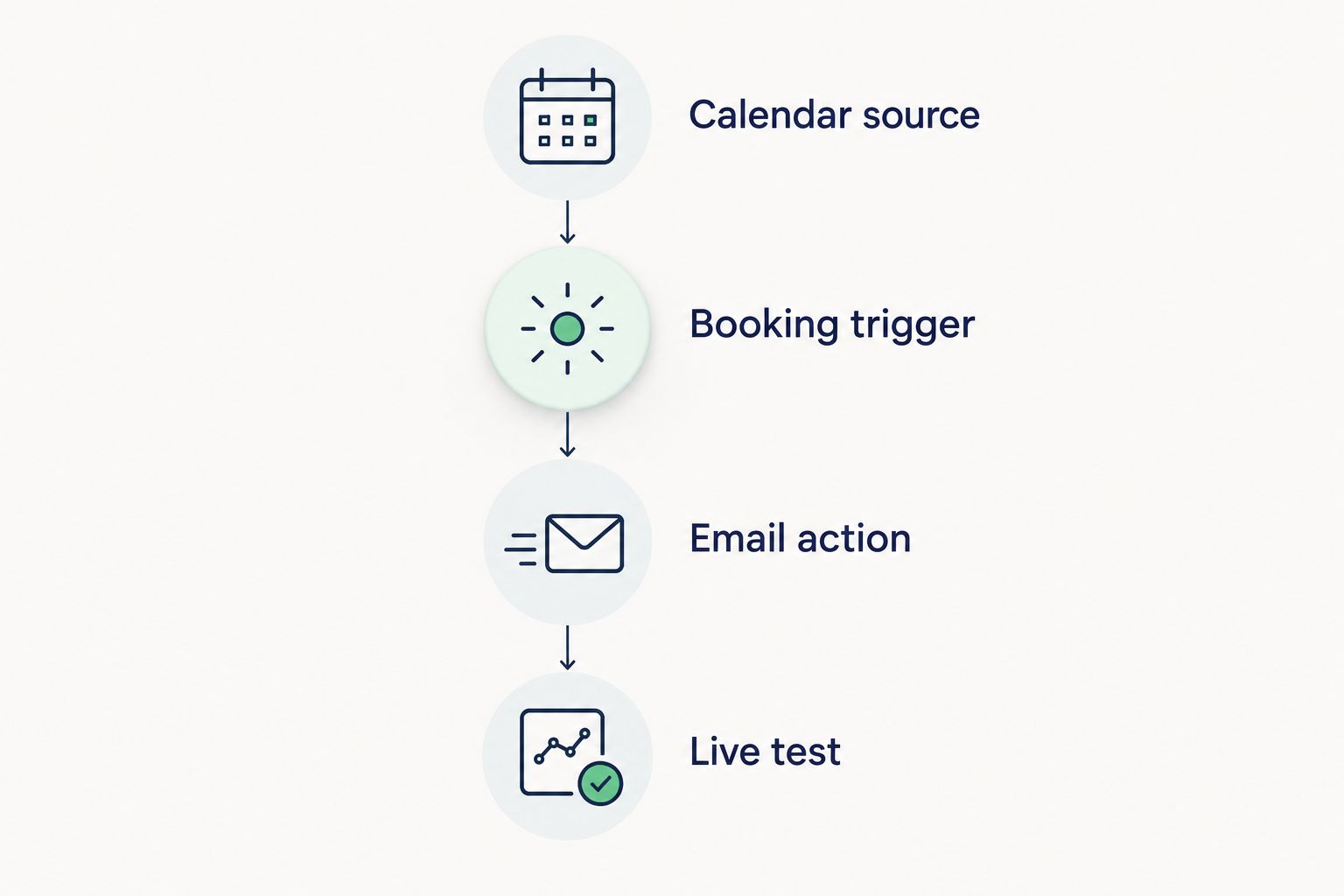
The core sequence is calendar source, booking trigger, email action and live test. Each stage has a different check: correct resource, correct reservation, correct message and correct real-world delivery.
Gmail notification action
The action determines what happens after Zapier receives a booking. Start with a plain email containing enough information for the recipient to identify the resource and reservation.
- Add an action and select Gmail.
- Choose Send Email and connect the agreed sending account. Use an account your organisation intends to retain for the workflow.
- Enter the approved recipient in To. For the first version, use a fixed recipient rather than deriving an address from untested booking data.
- In Subject, combine a clear booking label with the pod’s calendar name. Keep private meeting subjects out of the notification subject line.
- In Body, map the reservation’s start time and end time from the trigger sample. Include the pod name and, where useful, the event identifier for troubleshooting.
- Select Test step and inspect the delivered message. Check the recipient, resource name, times and formatting in the actual email, not just the editor preview.
Expected result: The agreed recipient receives a readable booking notification with details from the correct calendar event.
A useful message says which pod was reserved and when. It does not need an attendee list, a meeting agenda or notes copied from the calendar description. Send the smallest amount of information that lets the recipient do their job.
Make the wording explicit: this is a new booking notification. Avoid language suggesting that the message confirms a person has arrived or that the pod’s equipment has been checked.
If the email includes a booking link, map the link supplied by the calendar event rather than constructing one yourself. A malformed link adds another failure point without improving the notification.
Live test and publication
Testing the action proves that Gmail can send the sample message. A live test checks whether a newly created reservation moves through the complete workflow.
- Review the trigger calendar and email recipient once more. Remove any temporary recipient that should not receive live notifications.
- Select Publish when the trigger and action tests match your intended workflow.
- Create a fresh reservation in the selected pod calendar. Use another neutral test title so it is easy to distinguish from the earlier sample.
- Open Zap History and inspect the resulting run. Compare the event received by the trigger with the email action’s input and result.
- Check the recipient’s inbox. Confirm that the delivered notification describes the fresh booking rather than the earlier test sample.
- Remove the test reservations when your checks are complete. Keep a short operational note recording the source calendar, sending account and responsible owner.
Expected result: A newly created pod reservation produces the intended notification without manual copying.
Run three test bookings as a setup recommendation: a normal reservation, a reservation with a neutral description, and a reservation created by another authorised colleague. This checks the workflow against your own booking practices; it is not a performance benchmark.
Do not promise an exact delivery delay based on a successful test. Your operational rule should explain where staff check the booking itself when a notification has not arrived.
Send a notification whenever a booking is updated
Rescheduling is a separate notification need. A workflow that handles new reservations should not be treated as proof that changes will reach the same recipient.
For an update-aware version, use Google Calendar’s New or Updated Event trigger and describe the message as a booking notification covering creation or change. That trigger is not an update-only filter.
| Workflow | Best for | Benefit | Trade-off |
|---|---|---|---|
| New Event | Workplace teams that need a notice when reservations are created | A focused new-booking workflow | Does not serve as a rescheduling notification workflow |
| New or Updated Event | Teams that need notices when bookings are created or edited | Keeps recipients informed of booking changes | Edits can create additional messages; wording must cover both creation and updates |
Duplicate the tested workflow as a starting point, change the trigger and test it with a real edit. Move a test reservation by 15 minutes, then confirm that the notification contains the revised time.
Avoid leaving both versions active with the same recipient and message purpose. New reservations can enter both workflows. Choose the version that matches the notification you need, or give each workflow a clearly different role.
An update-aware trigger is not a cancellation process. Define and test cancellation handling separately before describing the automation as a complete booking lifecycle.
Troubleshooting
The booking does not appear in the trigger test
Check the selected calendar and connected account first. Confirm that the booking exists in that calendar, not merely as an invitation visible elsewhere. Create a fresh test reservation in the intended resource and test again.
The email contains the wrong booking details
Inspect the trigger sample used during configuration. Replace static text copied from an old test booking with mapped event fields. Retest the action and compare the delivered email with the calendar reservation.
Staff receive duplicate notifications
Check for multiple active Zaps reading the same calendar. In particular, inspect whether both the new-event and update-aware variants send the same message. Disable the redundant workflow and repeat the live test.
The notification shows the wrong time
Compare the calendar event’s time zone with the value mapped into Gmail. Do not remove a time-zone indicator simply to shorten the message. Test a reservation with a clearly recognised local start time and inspect the delivered result.
The workflow stops after an account change
Review the connected Google Calendar and Gmail accounts in Zapier. Restore the required authorisation through the organisation’s agreed account owner, then retest the trigger and action. Keep workflow ownership separate from an individual employee’s informal setup.
Customise your workflow
Expand the workflow only after the basic notification behaves as intended. Start with message relevance, then add destinations or reporting.
- Separate operational audiences: Decide whether workplace coordinators, booking organisers or another agreed team need the message. Do not copy everyone into every reservation.
- Keep resource names consistent: Use the same pod reference in the calendar and notification so recipients know which workspace the message concerns.
- Define change handling: Document what happens after a reschedule or cancellation, including which booking system staff should check.
- Separate reservations from usage: Report booked time as booked time. Do not label it occupancy or attendance without a separate source for those events.
For Soundbox Store office pods, the physical workspace and the software workflow have different jobs. The pod provides the private space; the booking system records reservations; Zapier distributes selected information.
FAQ
How do I set up an office pod–Zapier integration?
Connect the pod’s booking calendar to Zapier, then add an action such as a Gmail booking notification. The workflow described here uses Google Calendar’s New Event trigger and Gmail’s Send Email action.
Does this workflow connect directly to the office pod?
No, this workflow connects Google Calendar to Gmail through Zapier. It does not control the pod’s lighting, ventilation, locks or other physical equipment.
Can Zapier tell me whether someone is inside the pod?
A calendar-based Zap cannot establish whether someone is inside the pod. A reservation records booked time, not actual attendance or occupancy.
How do I notify staff when a pod booking changes?
Use an update-aware trigger such as Google Calendar’s New or Updated Event and test an edited reservation. Write the notification to cover both new bookings and changes, because this trigger is not update-only.
Why am I getting two emails for one pod booking?
Check whether multiple active Zaps read the same calendar and notify the same recipient. A new-event workflow and an update-aware workflow can both process a newly created reservation.
Do I need a smart lock for booking notifications?
No, a calendar-to-email booking notification does not need a smart lock. Treat physical access control as a separate project with its own documented compatibility and configuration.
One last thing
A booking alert should not become a second booking system. Tell recipients to check the calendar for the current reservation, especially after edits. The strongest next step is to give the workflow a named owner who checks failures and maintains account access.


