 fr


 Guide produit
How to get strong Wi-Fi signal inside a soundproof pod
Instead of reconnecting before every call, improve the Wi-Fi signal inside a soundproof pod by comparing the connection outside and inside with the door closed, then asking IT to correct coverage, congestion or device settings. Validate the change with a real video call from your normal working position—not just a speed test.
- For Wi-Fi signal inside a soundproof pod, test the same device outside and inside before changing equipment.
- Soundbox Store acoustic office pods suit private workplace calls; wireless performance needs a separate, location-specific check.
- Compare supported Wi-Fi bands, access-point coverage and live-call quality rather than relying on signal bars.
- Use an IT-approved wired connection as a diagnostic comparison where a verified connection already exists.
Why this matters
Acoustic performance does not establish wireless performance. Sound and radio waves behave differently, so a pod's noise-reduction specification cannot tell you how well your laptop will connect inside it.
For a single-person call space such as the Quell Office Pod Solo, test the laptop where the caller will actually sit. A successful connection beside the booth does not establish a successful connection inside it.
Wireless performance depends on the access point, the intervening environment, competing traffic and the client device. A strong signal also does not guarantee a stable internet connection: congestion or an upstream fault can interrupt a call even when signal bars look healthy.
Soundbox Store acoustic office pods are best for businesses seeking private workplace call spaces, not a substitute for network planning. Treat the enclosure and its connection as separate parts of the same working environment.
Before you start
- Have the right access. Use your normal work laptop, approved office Wi-Fi credentials and your usual calling application. Arrange help from the person who manages the wireless network before changing access-point settings.
- Prepare a comparison record. Note the pod location, device, network name, test position and whether the door is open or closed. Use the same approved connection test throughout.
- Check the hidden gotcha: network names do not identify access points. Several access points can broadcast the same network name. Your laptop can remain connected to a more distant access point even when a nearer one exists; ask IT to check the actual association.
Do not assume a pod includes Ethernet, a wireless access point or networking accessories. Confirm the exact configuration before planning around any of those features.
Connection baseline
Start by establishing whether the problem belongs to the pod location, the laptop or the wider office network. Keep the device and test method consistent so the comparison means something.
Record the working connection
- Connect your laptop to the approved office network outside the pod. Keep the normal workplace connection requirements, including any required VPN, unchanged.
- On a Windows laptop, open Settings, select Network & internet, then Wi-Fi and Hardware properties. Record the network details displayed, including the band where shown.
- Run your organisation's approved connection test. Record download and upload results in Mbps and latency in milliseconds if those measurements are provided.
- Enter the pod and repeat the test from the normal working position with the door closed. Keep the laptop's position and orientation consistent between repeat tests.
- Compare the results with a brief door-open test. Use this only to isolate the effect of the enclosure; an open door is not the finished solution for private calls.
Expected result: you have comparable outside, closed-door and open-door observations rather than a general impression that the Wi-Fi feels slow.
A closed-door deterioration identifies something to investigate, not its precise cause. Ask IT to compare signal, access-point association and radio conditions before attributing the problem to a particular pod component.
Separate device faults from location faults
- Repeat the closed-door test with another approved work device using the same network.
- Check whether the original laptop also struggles elsewhere in the office.
- Record whether the fault affects browsing, file transfers, live calls or all network activity.
- Give IT the observations together. Include the time of the interruption so the network team can compare it with their logs.
Expected result: you know whether the fault follows a device, follows the location or affects the wider network.
If another device works reliably in the same seat, investigate the original laptop's wireless adapter, software and network profile before requesting new office networking equipment. If both fail only inside the pod, prioritise the location-specific investigation.
Wireless coverage configuration
Choose the network change from the diagnosis, not from the signal-bar icon. The right response to weak coverage differs from the right response to a busy wireless channel or an overloaded internet connection.
Compare the supported bands
Wi-Fi networks use bands including 2.4 GHz, 5 GHz and 6 GHz. Support depends on both the network equipment and the client device; do not assume your laptop or office network supports every band.
Lower-frequency radio generally travels through obstacles more effectively, but band choice also changes the interference and capacity conditions. That makes a controlled comparison more useful than a blanket instruction to select the newest band.
| Connection option | Best for | Advantage | Limitation |
|---|---|---|---|
| Existing office Wi-Fi | A pod already within reliable coverage | Keeps the normal workplace connection | Nearby desk coverage does not establish closed-door pod coverage |
| 2.4 GHz Wi-Fi | Comparing an alternative where higher-band coverage is weak | Generally better obstacle penetration | Interference and shared airtime can limit performance |
| 5 GHz or 6 GHz Wi-Fi | Compatible devices with suitable local coverage | Offers different channel and capacity conditions | Coverage through obstacles needs checking; support varies |
| Existing verified Ethernet | Isolating the wireless link during diagnosis | Removes the laptop's Wi-Fi hop from the test | Requires a confirmed data connection and compatible device connection |
- Ask IT which bands the approved network and laptop support.
- Have IT arrange a controlled band comparison where the network permits it. A shared network name can conceal automatic band selection.
- Repeat the same closed-door connection test on each supported option being assessed.
- Compare upload behaviour, latency and live-call stability as well as download throughput.
- Keep the organisation's required authentication and access settings unchanged.
Expected result: IT can identify whether a supported band improves the actual pod connection, rather than selecting one solely because its advertised speed is higher.
Review access-point association and coverage
- Ask IT to identify the access point serving the laptop during the failed closed-door test.
- Request a coverage and channel-utilisation check at the working position inside the pod.
- Have IT compare the findings with the outside baseline and review whether the laptop remains associated with a distant access point.
- Let IT select the appropriate network-side adjustment. Coverage design, channel planning and client-association behaviour need to be considered together.
- Repeat the original test after each agreed change. Keep a record of what changed and the resulting behaviour.
Expected result: the network team can connect an observed improvement or failure to a specific change.
Avoid changing several settings together. If the laptop, band selection and access-point configuration all change at once, you lose the ability to identify which change helped.
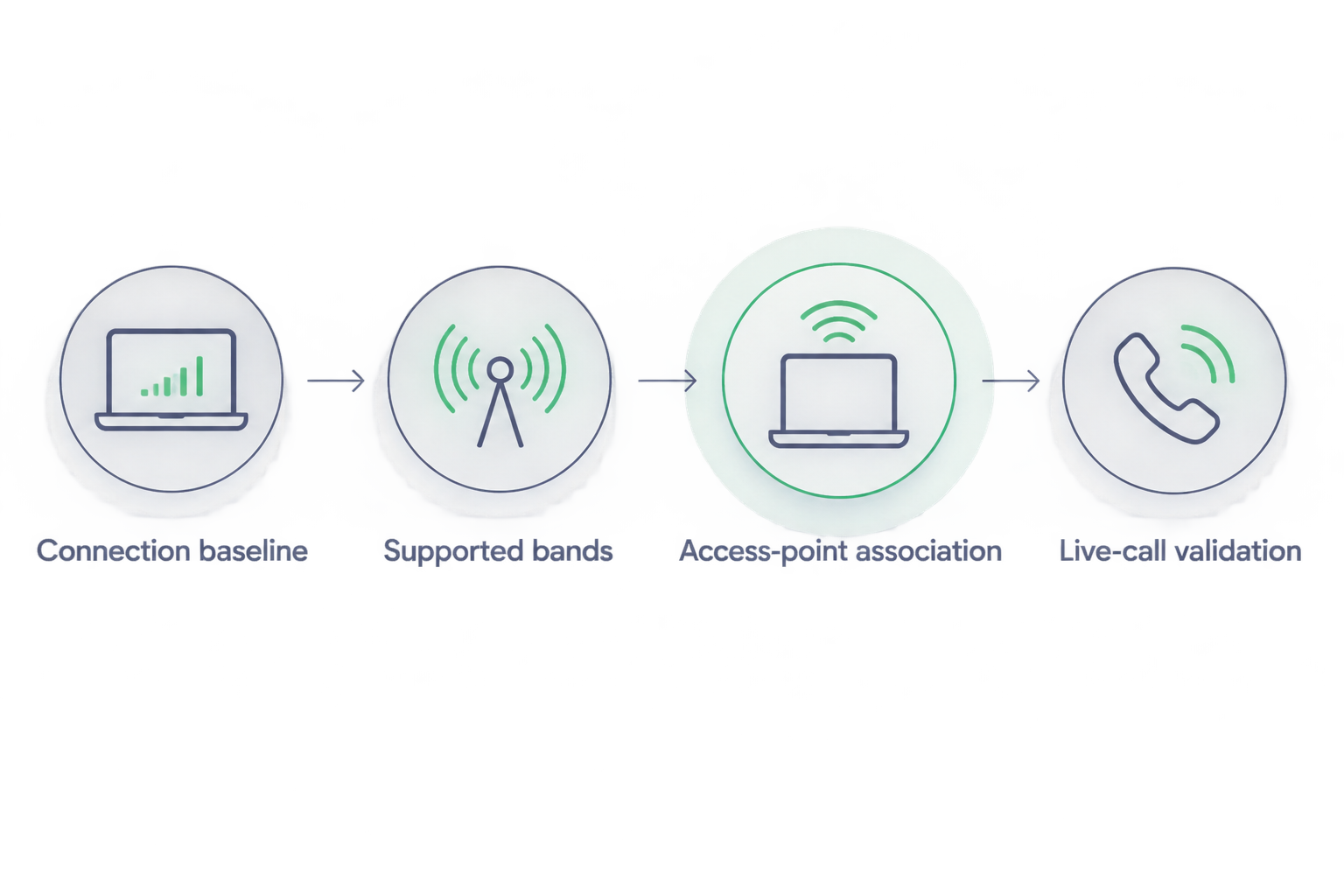
Live-call validation
A speed test measures a particular transfer at a particular moment. A workplace call also depends on consistent delivery while people speak, share content and use other office services.
Test the real task
- Join a test meeting with a colleague elsewhere, using your normal calling application and approved workplace account.
- Close the pod door and use the laptop in its normal working position.
- Speak in both directions, enable video if your work requires it, and share the type of content you normally present.
- Ask the remote participant to report missing words, frozen video and delayed responses. Record your own observations separately.
- Open the application's connection diagnostics where available. Give any reported packet loss, latency or jitter measurements to IT without substituting invented pass marks.
- Repeat during a representative busy period, not only when the office is quiet.
Expected result: the connection supports the actual task under representative conditions, with observations from both ends of the call.
Accept the workflow on call quality, not on the highest download result. Apply the calling service's published network requirements and your organisation's own acceptance criteria rather than a universal speed target.
Keep a useful handover record
Save the approved network name, tested device, pod location, working position and final test outcome. Record who owns the network issue if it returns.
For Soundbox Store meeting booths, match the test to the intended meeting pattern. A single laptop joining a remote meeting is a different network workload from several occupants connecting independently; validate the pattern your team will actually use.
Repeat the checks whenever the workspace changes
Retest the Wi-Fi signal inside a soundproof pod after an office layout change, an access-point change or a change of work device. A previous successful test describes the previous arrangement.
Use the saved baseline rather than starting from memory:
- Repeat the closed-door test with the normal laptop.
- Compare the current network association and supported band with the saved record.
- Run the same live-call task and note any difference.
- Refer changed results to IT before introducing an extender or another wireless network.
The benefit is a repeatable check that distinguishes a new connection problem from an old assumption. The limitation is that a quiet-period test still does not represent a busy office, so retain representative call testing in the process.
Troubleshooting
The connection works outside but drops with the door closed
Repeat the comparison with another approved device and ask IT to inspect the connection inside. Keep the access-point association and band in the record; the location difference alone does not identify which material or network condition caused it.
Do not use a permanently open door as the workaround for a private call space. Resolve the network connection under normal closed-door use.
Signal bars look strong, but speech breaks up
Check the live application's diagnostics and ask IT to investigate packet loss, latency variation, channel utilisation and upstream connectivity. Signal strength describes only part of the connection.
Compare behaviour elsewhere on the same office network. If calls fail outside the booth too, widen the investigation beyond pod coverage.
Only one laptop has problems
Ask IT to check the affected laptop's wireless adapter software, network profile and device configuration. Compare the failing laptop with a working device in the same position.
Do not remove required workplace software or disable required network controls to make the test pass. A connection that works only outside your normal work configuration is not a completed fix.
A wireless extender adds a network but not reliable calls
Have IT check the extender's connection back to the office network. A strong laptop-to-extender signal does not establish a strong extender-to-network connection.
Stop adding repeaters without a network design review. Additional wireless hops do not correct an unreliable upstream connection.
Ethernet works, but Wi-Fi does not
Treat this as evidence that the wireless part of the tested connection needs attention. Confirm that the comparison used the same application and required workplace settings.
Use only an existing, verified data connection for this comparison. A socket's appearance does not establish its network function, and this workflow does not require altering the booth.
Customise your workflow
For a solo call booth, validate the normal caller's device and applications. For a shared meeting booth, include the different devices and simultaneous connection pattern the team expects to use.
When considering a Soundbox Store office pod, keep product selection separate from networking assumptions. Confirm the booth configuration and ask your IT team to assess connectivity for the proposed working location; do not treat a product name or acoustic specification as a wireless guarantee.
Extend the handover record with a simple fault-reporting routine: location, time, device, task and observed symptom. This gives IT something more actionable than a report that the pod internet is bad.
FAQ
How do I improve the Wi-Fi signal inside a soundproof pod?
Compare the same device outside and inside with the door closed, then ask IT to review coverage, supported bands and access-point association. Confirm the fix with a live call from your normal working position.
Does soundproofing automatically block Wi-Fi?
No: an acoustic specification does not establish radio-frequency performance. Test wireless connectivity in the actual enclosure and location rather than inferring it from a noise-reduction claim.
Should I use 2.4 GHz or 5 GHz inside an office pod?
Use the supported band that delivers the most reliable closed-door connection in your tests. Lower-frequency radio generally penetrates obstacles better, but interference, channel utilisation and local coverage also affect the result.
Will a Wi-Fi extender fix dropped calls in a booth?
A Wi-Fi extender is not a guaranteed fix because its connection back to the office network must also be reliable. Ask IT to diagnose the weak part of the connection before adding equipment.
Why do video calls freeze when the pod has full Wi-Fi bars?
Full Wi-Fi bars do not rule out congestion, packet loss or an upstream internet fault. Check application diagnostics and compare the same call outside the pod to narrow the investigation.
Do Soundbox Store pods include a network connection?
Confirm networking provisions for the exact product and configuration before relying on them. Do not assume Ethernet, a wireless access point or networking accessories are included.
One last thing
The most revealing test result can come from the person outside the pod. Your incoming audio can sound acceptable while the remote participant hears gaps in your outgoing speech, so always validate both directions before closing the issue.


