 no


 Produktguide
How to add an intercom system to a soundproof office pod
Instead of walking across the office and knocking whenever reception needs a pod occupant, add an intercom system with a dedicated pod calling address and answer-first audio. Configure the communication endpoint separately from the booth, then test incoming calls, privacy controls and unanswered-call handling before introducing it to staff.
- An intercom system for an office pod should request a conversation, not open a microphone automatically.
- Soundbox Store office pods provide private workspaces; confirm intercom compatibility separately for your chosen equipment.
- Use a dedicated pod endpoint when reception needs to contact the room rather than a particular employee.
- Test incoming calls during meetings, busy periods and occupant changes before expanding the workflow.
Why this matters
A pod separates a conversation from the surrounding workplace, but reception still needs a way to announce a visitor or request a response. An intercom should handle that contact without turning the pod into an extension of the office loudspeaker.
Soundbox Store office pods suit businesses creating private spaces for calls and meetings. The Quell Office Pod Solo, for example, is a 1-person booth designed for private calls. That describes the workspace, not an included intercom or a confirmed connection to third-party equipment.
Keep those decisions separate. Choose the pod for its intended work, and assess the communication system against the calling behaviour you need.
This guide covers call routing, endpoint settings and operational testing. Physical alterations, electrical connections and equipment fitting are outside its scope.
Before you start
- Gather the communication details. Have the intercom or telephone system documentation, administrator access, the receiving endpoint and a reception device ready. Confirm that your chosen system supports calls between those endpoints.
- Identify the workspace and its owner. Record the pod name, intended users, reception contact and person responsible for communication settings. For an existing Soundbox Store booth, identify the exact model before discussing equipment compatibility.
- Check the hidden privacy issue first. Some communication systems support automatic answering or paging. Confirm that your chosen endpoint can require the occupant to accept a call; a reception announcement must not become an open microphone into a private meeting.
Write down the contact scenario before configuring anything. “Reception needs to tell the occupant that a visitor has arrived” is a clear requirement; “make the pod connected” is not.
Call-flow selection
Choose whether you need to contact a person, a shared workspace or several pods. These are different workflows, even when the same communication platform handles them.
| Workflow | Best for | Advantage | Limitation |
|---|---|---|---|
| Dedicated pod endpoint | Reception contacting whoever occupies a shared booth | Gives the workspace a consistent calling destination | Someone must maintain the shared device and account |
| Occupant's existing calling app | Staff who always bring their own device | Keeps calls attached to the employee | Does not give reception a permanent address for the pod |
| Pod directory | Offices with several shared booths | Lets reception select a named workspace | Requires accurate names and individual routing checks |
Use a dedicated pod endpoint when the room, rather than a named employee, is the destination. Use personal calling when reception already knows whom to contact and there is no need for a shared room address.
Neither approach needs to broadcast into the room. The recommended behaviour is an incoming request that the occupant accepts, declines or leaves unanswered.
Endpoint identity
- Name the workspace. Choose a recognisable pod name that matches your booking records and office directory. Avoid an employee's name for a shared booth.
- Define the destination. Assign the pod's supported endpoint its own calling identity using your communication provider's documented process. Keep its identity distinct from reception's account.
- Set caller recognition. Make reception identifiable to the occupant through the calling system's supported caller information. Test what the receiving endpoint actually displays.
- Record ownership. Document who can change the destination and who handles account recovery. Keep credentials out of instructions displayed for everyday users.
Expected result: reception can find a clearly named pod destination, and the occupant can recognise an incoming reception call.
Use the provider's actual field names and documented procedures when applying these settings. An extension-based telephone system and an app-based endpoint do not share a universal configuration screen.
A shared pod also needs a shared operating process. If the endpoint depends on an employee remaining signed in, establish who restores the intended room account when that employee leaves.
Incoming-call behaviour
- Require acceptance. Select the supported answering mode in which the occupant accepts an incoming call. Exclude automatic microphone opening from this workflow.
- Limit callers. Where the platform supports calling restrictions, allow the people or reception group that genuinely need to contact the pod. Test those restrictions from both an intended caller and an unrelated account.
- Choose unanswered handling. Decide whether an unanswered request returns to reception, ends or follows another supported route. Do not leave the result to an undocumented default.
- Separate announcements from conversations. Keep the initial request short. Once the occupant answers, reception can explain the reason for calling without broadcasting it in advance.
- Check termination. End the call from each endpoint in turn and confirm that the connection closes. Repeat after a declined call.
Expected result: an incoming request alerts the occupant without transmitting room audio before acceptance, and unanswered requests follow the agreed route.
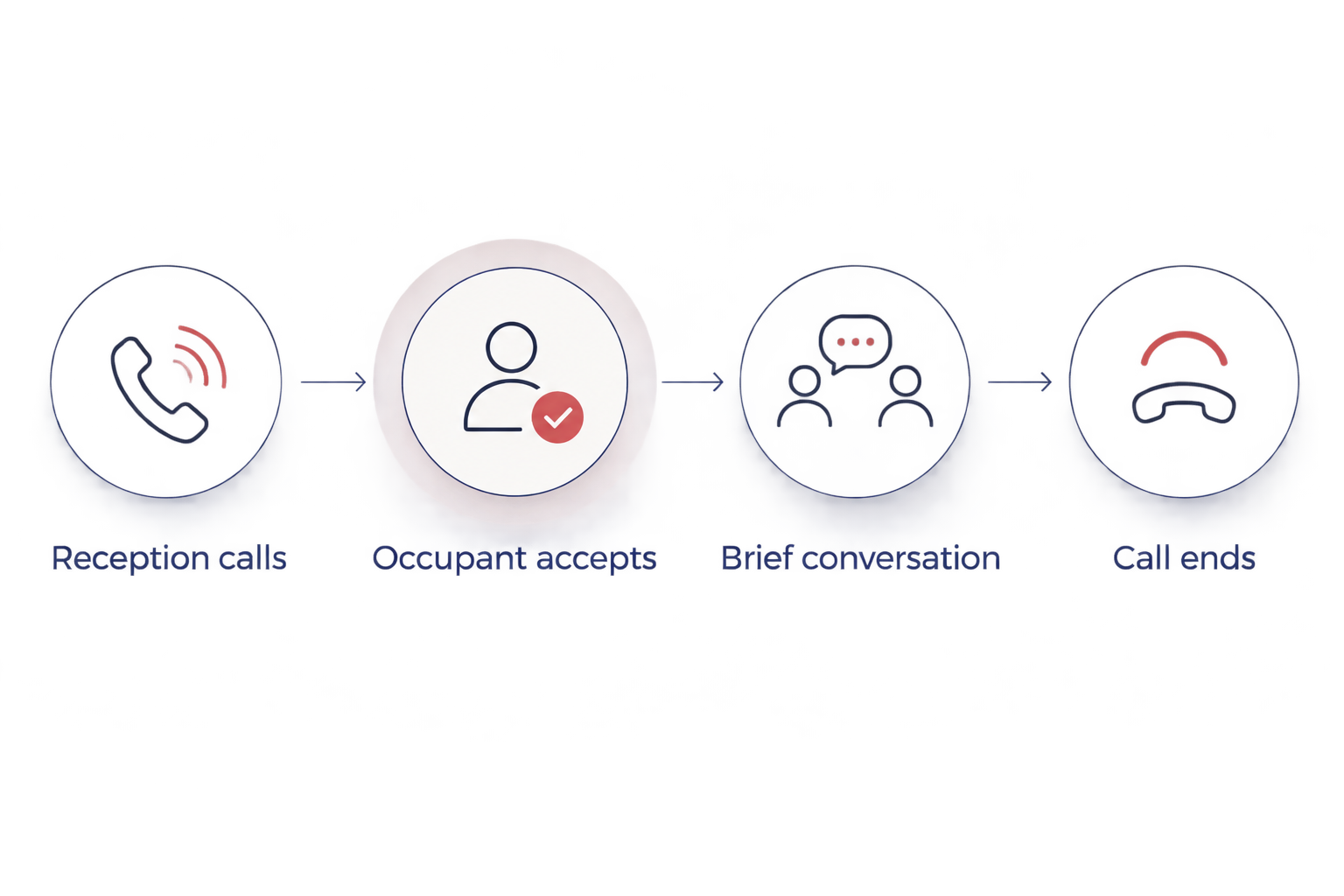
Treat answer-first behaviour as an acceptance requirement, not a setting to revisit after launch. If the chosen equipment cannot provide it, choose another communication method rather than weakening the privacy brief.
Audio and interruption controls
- Select the intended audio device. Confirm which microphone and speaker the endpoint uses. Check the selection again after reconnecting any accessories.
- Choose an appropriate alert. Use an alert the occupant can recognise during normal work. Test it during an actual video meeting rather than only in an otherwise silent booth.
- Define busy behaviour. Decide what reception should experience while the occupant is already on another call. Apply the supported busy, decline or notification controls that match that decision.
- Prevent competing audio paths. During testing, keep unnecessary microphones and speakers out of the conversation. Introduce additional devices individually if they are part of the intended workflow.
- Check the occupant's controls. Ask a colleague unfamiliar with the setup to accept, decline and end a call without coaching.
Expected result: the occupant recognises the request, controls whether to answer and can finish the exchange without confusion over the active audio device.
Do not use a louder alert to solve every missed request. First establish whether the call reached the correct endpoint, whether notifications were suppressed and whether the occupant was already engaged.
Acceptance testing
- Test ordinary contact. Call from reception, accept inside the pod and exchange a short message in both directions. Confirm the displayed identity and selected audio devices.
- Test an unanswered request. Leave the call unanswered and observe the complete outcome. Check that reception knows whether to try another contact method.
- Test an occupied endpoint. Repeat while the occupant is already using the communication device. Confirm that the result matches the agreed busy behaviour.
- Test an occupant change. Finish one session, then ask another colleague to use the booth. Verify that the pod remains reachable without exposing the previous user's personal account.
- Record the result. Note the endpoint, caller, scenario, observed behaviour and corrective action. Repeat failed scenarios after changes.
Expected result: reception and occupants can complete the intended exchange, including the cases where nobody answers.
Keep test messages ordinary and non-sensitive. A visitor-arrival message is enough to check the workflow; a real private conversation adds nothing to the test.
Variant: reception contact across several pods
A pod directory extends the same workflow without changing its privacy rules. Give every workspace a distinct identity and test each destination separately; copying a configuration does not prove that the copied destination is correct.
Start with names staff already recognise. Use the same room names in the communication directory and booking process so reception does not have to translate between unrelated labels.
Capacity helps distinguish the intended workspace, but does not determine intercom compatibility. For example, the 2-person meeting booth and Quell 4 Person Meeting Booth serve different meeting sizes. Neither capacity description establishes which third-party endpoint connects to the booth.
For a multi-pod directory:
- Assign one clearly identified calling destination to each workspace.
- Call each destination while a colleague confirms which endpoint receives the request.
- Test that reception can distinguish an unanswered pod from an incorrect destination.
- Update the directory whenever a pod changes name or operational role.
Keep all-pod paging out of the private-contact workflow. A request intended for one occupant should reach that workspace, not interrupt every booth.
Infrastructure handover
A wired endpoint adds an infrastructure decision to the calling workflow. Before commissioning that work, give your communication provider and facilities contact the endpoint documentation, intended location and required calling behaviour.
Planning low-voltage wiring for offices starts with identifying the devices and connections the workplace needs; the pod intercom brief should likewise distinguish its communication endpoint from the booth itself. Keep that infrastructure brief separate from instructions for accepting and ending calls.
Ask the supplier to confirm the proposed arrangement for the exact equipment and pod model. Do not treat a wireless label, a familiar connector or a product photograph as evidence of compatibility.
The handover should identify responsibilities:
- The communication provider confirms endpoint support and account configuration.
- The pod supplier addresses questions about the specific booth.
- The workplace owner approves caller access, interruption rules and everyday use.
This division gives each question an owner without making unsupported claims about Soundbox Store equipment.
Troubleshooting
The endpoint works outside the pod but not inside
Test the same endpoint in both locations without changing its account settings. Give the results to IT so it can investigate connectivity at the intended location rather than repeatedly changing call routing.
For a wireless endpoint, include a real incoming call in the test. A device appearing connected is not the same as completing the intended conversation.
Calls reach the previous occupant
Check whether reception is calling a personal account instead of the shared pod identity. Restore the agreed destination and repeat the occupant-change test.
If your workflow intentionally uses personal accounts, contact the employee rather than presenting the number as a permanent pod address.
The occupant hears reception before accepting
Check the endpoint's documented automatic-answer and paging behaviour. Remove those behaviours from the private-contact workflow and retest before staff use it for ordinary conversations.
If the equipment cannot require acceptance, replace that workflow with a supported calling method that can.
Audio echoes or comes from the wrong device
Confirm the microphone and speaker selected by the calling application. Disconnect unnecessary audio paths during diagnosis, then add intended devices back individually.
Retest with the normal video-meeting setup running. The goal is a working everyday arrangement, not an isolated demonstration that depends on unused equipment being absent.
Requests are missed during meetings
Check busy handling and notification suppression before adjusting the alert. Agree whether the occupant should receive a visible request, decline the call or remain uninterrupted.
Reception also needs a clear next action. An unanswered intercom request should not trigger repeated calls without an agreed reason.
Customise your workflow
Expand the contact process only after ordinary reception-to-pod calling works. Separate visitor announcements from technical support requests, and define who is permitted to use each route.
For offices with several booths, the next planning step is networking multiple office pods for large teams. Keep workspace names, endpoint ownership and support responsibilities consistent as the directory grows.
Give occupants a short operating note covering the calling identity, answer and decline actions, and how to report a fault. Keep administrator settings in a separate handover document.
FAQ
Can I add an intercom system to an existing office pod?
Confirm a supported communication endpoint and calling method before adding an intercom workflow to an existing office pod. Identify the exact booth and equipment, and obtain supplier confirmation for any proposed physical changes.
Should an office pod intercom answer automatically?
Use occupant-accepted calls for private office conversations rather than automatic answering. The occupant should decide when to open a conversation with reception.
Is a wireless intercom better than a wired endpoint for a pod?
Choose between wireless and wired endpoints using confirmed equipment support and connectivity at the intended location. Wireless operation does not prove reception inside the booth, and a wired endpoint needs a separate infrastructure brief.
Can reception call a pod while someone is in a video meeting?
That depends on the communication endpoint and its busy-handling settings. Test the actual meeting setup and agree whether reception's request should appear, be declined or remain suppressed.
Does a Soundbox Store pod include an intercom?
Treat the intercom as a separate requirement unless the exact product specification explicitly includes it. A booth's description as a private calling space does not establish an included intercom or third-party compatibility.
How do I stop intercom calls reaching the wrong pod?
Assign a distinct calling identity to each pod and test every directory destination individually. Repeat those checks after renaming a workspace or changing its endpoint account.
One last thing
Make an unanswered call part of the final demonstration. A successful conversation proves the happy path; leaving a request unanswered shows whether reception knows what to do next without repeatedly interrupting the occupant.

