 no
no



















 Produktguide
How to connect a soundproof office pod to ServiceNow tickets
Instead of manually copying office pod fault reports from emails into ServiceNow, create a pod-specific reporting form that identifies the booth and routes each ticket to its support team. This office pod ServiceNow integration connects the reporting workflow—not the pod’s electronics—to ticket creation and updates.
- Start office pod ServiceNow integration with a reporting form, not an assumed hardware connector.
- Give every Soundbox Store office pod a unique identifier for accurate ticket routing.
- Use ServiceNow incidents for pod-related IT faults; keep facilities requests in the appropriate existing workflow.
- Test ticket ownership, duplicate handling and status updates before extending the workflow.
Why this matters
A report that says the booth is not working leaves the service desk guessing. A report that identifies the pod, its location and the affected equipment gives the receiving team something actionable.
For a Quell Office Pod Solo, the supplied product description identifies a 1-person booth intended for private calls. The ticket workflow should identify that physical booth separately from any laptop, display or other equipment used inside it.
Soundbox Store office pods are best for workplace teams seeking private spaces; ServiceNow handles the support workflow around those spaces. Keep those responsibilities separate. A ticket about connectivity does not establish that the pod itself has a fault.
The workflow below starts with employee reporting because it does not depend on a sensor, controller or manufacturer API. It also avoids treating the word soundproof as a promise of complete silence: an acoustic complaint still needs a clear description of what the user experienced.
Before you start
- Arrange ServiceNow access. You need an administrator or catalogue administrator who can configure the reporting form and routing, plus a non-production environment for testing. Confirm the required catalogue and automation capabilities with the instance owner.
- Prepare the pod register. Record a unique identifier, location and support owner for each booth. Include the product name when known, but do not use the product name as the identifier for several identical pods.
- Choose the ticket destination first. A record producer creates a record in its configured target table. An IT fault can follow your incident process; cleaning, furniture and other facilities reports should follow the existing facilities process instead. Do not send every pod report into the incident queue by default.
ServiceNow forms and navigation vary with instance configuration. The standard labels below identify common fields; have the administrator confirm the labels and permissions in your environment before publishing the employee-facing form.
Pod identity and ticket destination
Establish the reporting boundary
- Define the supported issue types. Start with pod-associated IT reports, such as connectivity problems experienced during a call. Describe the symptom without assuming that the enclosure caused it.
- Assign each physical pod a stable identifier. Use the existing workplace naming convention. Keep the identifier unchanged when you update a descriptive name, and update the location record whenever the pod’s recorded location changes.
- Select the destination table. For an incident-based workflow, configure the record producer’s Table name as Incident. Use your existing facilities intake for non-IT reports rather than creating an unsupported parallel process.
- Identify the receiving team. Agree which support group receives the initial ticket and who resolves reports that arrive in the wrong queue. Record that decision before configuring automation.
Expected result: every supported report has a defined destination and an accountable receiving team. The pod identifier resolves to a single physical booth rather than a product family.
Keep the scope narrow for the first release. One form that routes a clearly defined issue correctly is more useful than a broad form that accepts everything but leaves ownership undecided.
A product reference and a configuration item are different things. The former describes what was purchased; the latter represents something managed in your ServiceNow configuration. Do not create a configuration item merely to fill an optional field without agreement from the team responsible for configuration data.
Reporting form configuration
Create the employee-facing intake
- Create the record producer. In the administrator interface, open Record Producers, select New, and enter a descriptive Name, such as Report a pod IT issue. Confirm Table name before saving the configuration.
- Add the reporting variables. Ask for the pod identifier, issue type and a short description of the symptom. Treat these as proposed form labels, not built-in pod integration fields. Use a controlled pod list where your register supports it.
- Map the ticket content. Populate Short description with the pod identifier and issue summary. Put the detailed symptom and relevant location information in Description. Capture the affected equipment separately when the reporter can identify it.
- Confirm the reporter mapping. Ensure the resulting Caller represents the person reporting the incident. Do not assume that a custom variable labelled Reporter automatically populates the incident’s caller field.
- Publish through the existing catalogue. Place the producer where employees already report workplace IT issues. Check visibility using an ordinary employee account, not only an administrator account.
Expected result: an employee can submit a report that creates an incident with the correct pod reference, reporter and readable symptom description.
Ask for observations rather than diagnoses. Call audio broke up is more useful than pod network failed when the reporter has not established the cause. Avoid collecting meeting content, participant details or recordings when a description of the technical symptom is sufficient.
The form should also explain its boundary in plain language. Tell employees where to send non-IT requests through your existing workplace support channel, without promising that this incident form also manages cleaning or physical maintenance.
Ticket routing and duplicate handling
Configure ownership and repeat reports
- Set the assignment rule. Populate Assignment group from the agreed routing decision. Where ownership differs by location, use the pod register’s location data rather than free-text interpretation of the description.
- Preserve incident prioritisation. Apply the organisation’s existing Impact and Urgency rules. Do not make every pod incident urgent merely because it came from the new form.
- Define a repeat-report policy. Decide whether another report about the same pod and symptom should become a separate incident, be linked to an existing incident, or enter a review queue. Make the rule explicit before automating it.
- Add automation only within that policy. Use the instance’s supported workflow tools to apply routing and repeat-report checks. Match the pod identifier and issue context, not just the product name or a word appearing in the description.
Expected result: the incident reaches its intended group, retains the normal priority rules and follows a predictable process when another employee reports a similar problem.
Do not merge reports simply because they name the same pod. Connectivity trouble and a problem with a user’s headset can happen in the same booth without sharing a cause. Keep the individual reports visible until the support team has enough information to relate them.
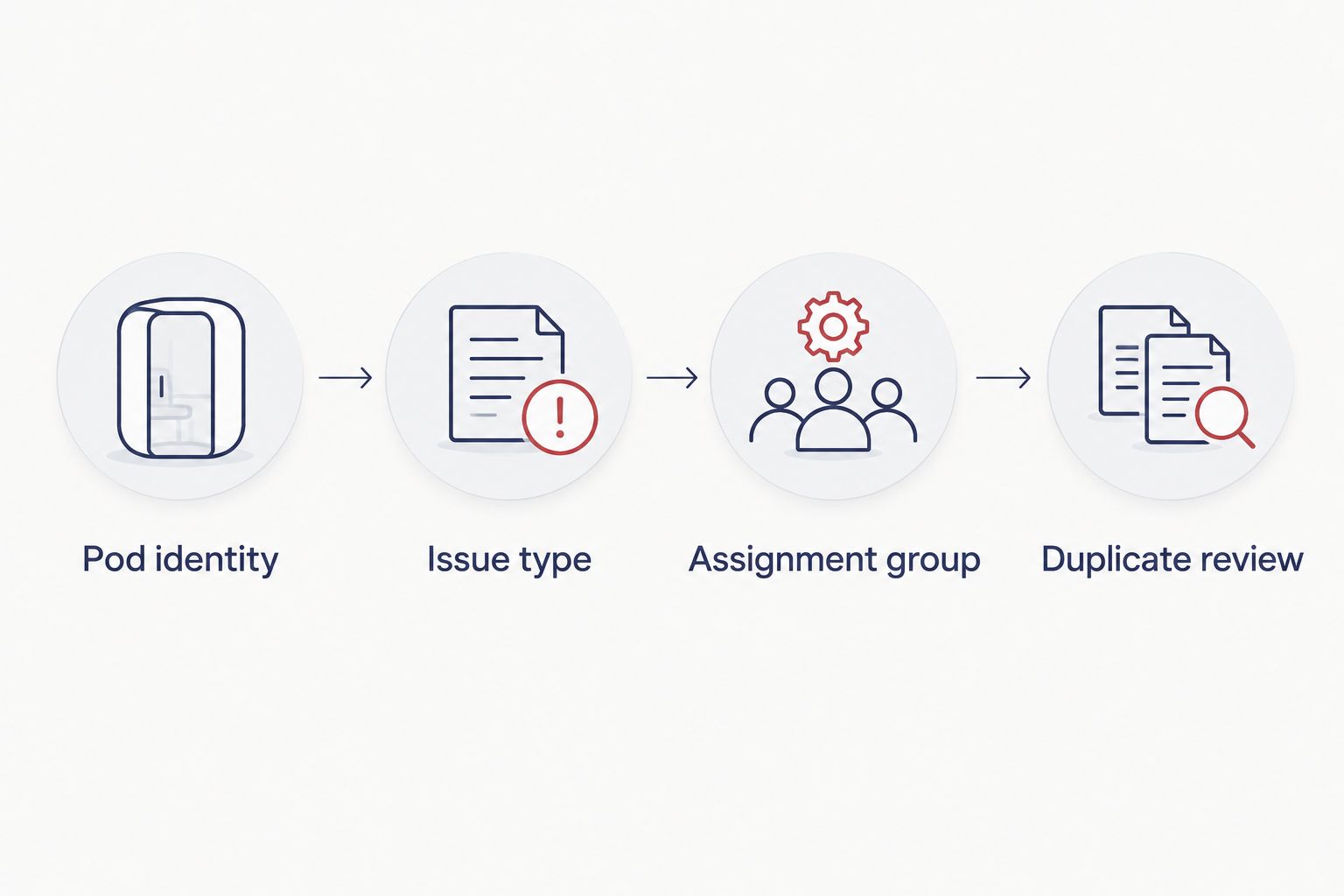
A useful routing sequence is pod identity, issue type, assignment group, then duplicate review. Resolve missing identity before attempting increasingly complicated rules based on incomplete descriptions.
Workflow testing and release
Verify the employee and support experience
- Submit 3 test reports. Use a normal pod-related IT report, a report with missing pod identity, and a repeat report. These are a suggested test set, not a measured performance benchmark.
- Inspect the resulting records. Check Caller, Short description, Description and Assignment group. Confirm that an ordinary support agent can see the information needed to act.
- Repeat 2 submissions for the same symptom. Verify that the configured duplicate policy takes effect. Inspect both the employee-facing response and the records left for the support team.
- Test the full lifecycle. Assign a ticket, add an update, resolve it and inspect the employee’s view. Confirm which updates are visible to the reporter and which remain internal.
- Release through the existing support channel. Explain where employees find the form and which issues it accepts. Give the receiving team responsibility for reviewing misrouted reports after release.
Expected result: the reporting path works for the employee, the receiving agent and the workflow owner—not just for the administrator who built it.
Test permissions as deliberately as field mappings. A successful administrator submission does not prove that an employee can open the form, select a pod or view the resulting ticket.
Also test a pod whose descriptive name has changed. A stable identifier should preserve the relationship, while the current location and description should remain understandable to the support agent.
Update an existing pod ticket instead of creating another
A second workflow makes sense when a reporter has more information about an existing incident. In that case, direct the employee to the existing ticket rather than asking for another initial report.
| Workflow | Best for | Benefit | Limitation |
|---|---|---|---|
| New pod report | A newly observed IT problem | Captures the pod, reporter and symptom together | Requires duplicate review when several people report the same issue |
| Existing ticket update | More detail about an already reported problem | Keeps investigation history together | Requires the employee to identify and access the correct ticket |
Configure the update path through your established employee ticket experience. Use the ticket reference to identify the record, then verify that the employee has permission to contribute to it. A pod identifier alone is not enough: several unrelated incidents can concern the same booth.
Keep internal notes separate from employee-facing communication. On standard incident forms, Work notes serves internal collaboration, while Additional comments is used for customer-visible discussion; confirm the actual visibility in your configured portal.
Expected result: additional observations enrich the original incident without silently overwriting its description or creating an unrelated record. Retain the history so the support team can distinguish the original symptom from later findings.
Troubleshooting
The form submits, but no incident appears
Check the record producer’s target table and submission errors. Then inspect permissions and any custom processing attached to the producer. Search using the reporter and submission details before asking the employee to submit again.
The ticket reaches the wrong team
Inspect Assignment group and the rules that populate it. Check whether a later rule replaces the initial assignment, and verify that the pod register contains the correct location and owner. Fix the source mapping rather than adding exceptions to free-text descriptions.
Every repeat report creates another incident
Review whether duplicate handling is actually configured or only described in the form instructions. Check the matching criteria and their timing. If matching remains uncertain, route candidates for review instead of automatically combining different issues.
Employees cannot select their pod
Check the pod list’s visibility and filtering using an employee account. Confirm that the booth exists in the underlying register and that location filters do not exclude it. Provide an exception path for an unidentified pod rather than encouraging employees to select the nearest alternative.
Ticket updates expose the wrong information
Review portal visibility, notifications and the distinction between Additional comments and Work notes. Test with separate employee and agent accounts. Remove meeting content from the reporting process when it is not needed to describe the fault.
Customise your workflow
Extend the workflow through better records before adding hardware events. For Soundbox Store office pods, retain the physical pod identifier while associating separately managed IT equipment with its own support records where your configuration model supports that relationship.
A sensor-triggered variant needs a documented event source, permission to receive its events and an agreed mapping into ServiceNow. Treat that as a separate integration project. The reporting form described here does not establish sensor, smart-lock or controller compatibility.
Keep ticket state and room-booking state separate, too. An unresolved incident does not automatically mean the booth cannot be booked, and a resolved ticket does not prove that a booking restriction has been removed. If your organisation wants those processes connected, define the decision owner and exception handling first.
FAQ
How do I connect an office pod to ServiceNow tickets?
Create a pod-specific reporting form that records the booth identifier and creates a ticket in the appropriate support workflow. Map the reporter, symptom, location and receiving team, then test the complete ticket lifecycle.
Do I need a sensor for office pod ServiceNow integration?
No sensor is needed for an employee reporting workflow. Automatic hardware-triggered tickets require a documented event source and a separately configured integration.
Should every office pod problem become a ServiceNow incident?
No. Use the incident process for pod-associated IT faults and the established facilities process for non-IT requests. Agree the destination and ownership before publishing the form.
Can this workflow manage reports about Soundbox Store office pods?
Yes, the workflow can identify a Soundbox Store office pod as the location of a reported issue. It relies on employee reporting and your ServiceNow configuration, not an assumed connection to the pod’s electronics.
How do I prevent duplicate pod tickets?
Define repeat-report handling using the pod identifier and issue context, then test it with repeated submissions. Do not combine incidents solely because they concern the same booth.
Can employees add information without opening another ticket?
Yes, use the existing employee ticket-update process with the correct ticket reference and permissions. Verify which comments and notifications are visible to the reporter before release.
One last thing
The most useful connection is the pod identifier, not a cable. Product names identify a type of booth; stable identifiers distinguish the actual workplace spaces your support team must find. Get that relationship right before adding automated triggers.


