 no
no



















 Produktguide
How to connect a soundproof phone booth to Calendly bookings
Instead of manually checking who has reserved your phone booth, set up a phone booth Calendly integration around a dedicated booking calendar so reservations control the times people can select. Connect the calendar to Calendly—not the booth hardware—and test booking, cancellation and rescheduling before sharing the link.
- A phone booth Calendly integration connects booking calendars, not acoustic booth hardware.
- Use a dedicated booking identity and calendar to separate booth reservations from personal appointments.
- Soundbox Store phone booths provide private call space; manage Calendly reservations separately.
- Test conflicting bookings, cancellations and rescheduling before publishing your booking link.
Why this matters
A calendar appointment is not automatically a booth reservation. Someone can schedule a client call while a colleague books the physical space for another purpose. The workflow needs to reserve the booth itself, not merely record the conversation.
For a physical call space such as the Office Phone Booth Folio, give the reservation a clear booth name and location. Soundbox Store phone booths suit teams seeking private call space; the booking workflow must separately establish who has reserved that space and when.
The setup below uses a dedicated booking identity for a single shared booth. Its calendar represents booth availability, while Calendly supplies the booking page. This keeps the process separate from an employee’s personal calendar, but it requires someone to own the account and maintain the booking rules.
Use one reservation calendar as the authority for each booth. Parallel spreadsheets, informal messages and unrelated booking links create competing records rather than a dependable schedule.
Before you start
- Accounts and access: Have a Calendly account, a supported calendar account and permission to connect them. Use an organisation-managed booking identity rather than an employee’s personal account. Confirm that your account exposes the calendar connections and event settings required below.
- Booth details: Prepare a unique booth name, an office location description, permitted booking hours and a named booking administrator. Keep the name consistent in Calendly, calendar entries and staff instructions.
- The gotcha: Checking a calendar for conflicts and writing bookings to a calendar are separate settings. A calendar that receives reservations but is not checked for conflicts does not provide the intended protection against overlapping bookings.
Do not substitute an invitation to a room resource for this setup without testing resource acceptance. A room invitation can be declined even when the organiser’s appointment exists. For this guide, use a calendar that the dedicated booking identity can directly read and write.
Set up the booth calendar
The booth calendar represents the physical space, not a particular employee. Keep unrelated appointments out of it: personal leave or an internal meeting should not close the booth unless that event genuinely makes the space unavailable.
- Create or select the organisation-managed calendar account that will own booth reservations. Assign a responsible administrator and record who maintains the connection.
- Create or select its reservation calendar. Give it a descriptive name, such as Booth Cedar, rather than a generic name such as Meetings.
- Open Calendly’s calendar connection settings and connect the supported calendar account. Complete the provider’s permission prompts using the booking identity.
- Under Calendars to check for conflicts, select the booth reservation calendar. Review any other selected calendars and remove unrelated calendars from this dedicated workflow.
- Under Calendar to add events to, select the booth reservation calendar. Save the settings, then verify that the selected conflict calendar and destination calendar match your intended setup.
Expected result: Calendly can read busy time from the booth calendar and write new appointments to that calendar. This establishes the reservation record; it does not control a door, detect occupancy or change the booth’s acoustic performance.
If the calendar is absent from either selector, stop before creating a public booking link. Resolve ownership, sharing permissions or account selection first. Choosing a similarly named calendar to get past the setup screen creates a harder problem later.
Configure the Calendly event type
Create a booking page whose purpose is reserving the booth. Avoid naming it after a particular client meeting: the same space can support different calls without needing a different reservation process for each one.
- Open Event types and create a One-on-One event for the dedicated booking identity. Here, the organiser represents the booth booking account; the invitee is the person reserving the space.
- Enter a clear event name, such as Booth Cedar reservation. In the description, explain that the booking reserves the physical booth and does not create or move the employee’s separate client appointment.
- Set Location to In-person meeting and enter the booth’s office location. Include enough detail for a colleague to find it without asking reception.
- Set Duration to your chosen booking length. For an example policy, use a 25-minute reservation with a 5-minute buffer afterwards; these are suggested settings, not product requirements.
- Configure the event’s available hours to match when staff can use the booth. Review its time zone and any date-specific exceptions before saving.
- Add booking instructions that tell staff to use the cancellation and rescheduling links in their confirmation. Keep questions limited to information needed to identify and administer the reservation.
Expected result: The booking page clearly identifies the booth, location and reservation length. Staff understand that reserving the space is separate from arranging the call they will take inside it.
A 25-minute booking plus a 5-minute buffer creates a 30-minute scheduling interval in this example. Check how those settings affect selectable times; do not assume the buffer appears as a separate busy event in every calendar view.
Choose the booking method deliberately
These are two operating methods for the same calendar-based setup, not two hardware integrations. Choose one as the normal route so staff know where reservations belong.
| Booking method | Best for | Advantage | Limitation |
|---|---|---|---|
| Staff use the shared Calendly link | Routine self-service reservations | Staff select from times offered by the booking page | Staff must reserve the booth separately from their client appointment |
| An administrator maintains busy entries on the booth calendar | Exceptions and temporary closures | Existing calendar entries can block selectable times when checked for conflicts | Manual entries need correct times and busy status; they do not become Calendly bookings |
Use self-service reservations for normal bookings and administrator entries for exceptions. Do not use the administrator’s personal calendar as a substitute for the booth calendar.
Validate the reservation lifecycle
A successful first booking proves only that an appointment can be created. You also need to prove that the calendar prevents conflicts and correctly releases time after changes.
The test sequence below checks the reservation from creation through removal. Use a future slot during the configured booking hours and identify every test entry clearly so nobody mistakes it for a real reservation.
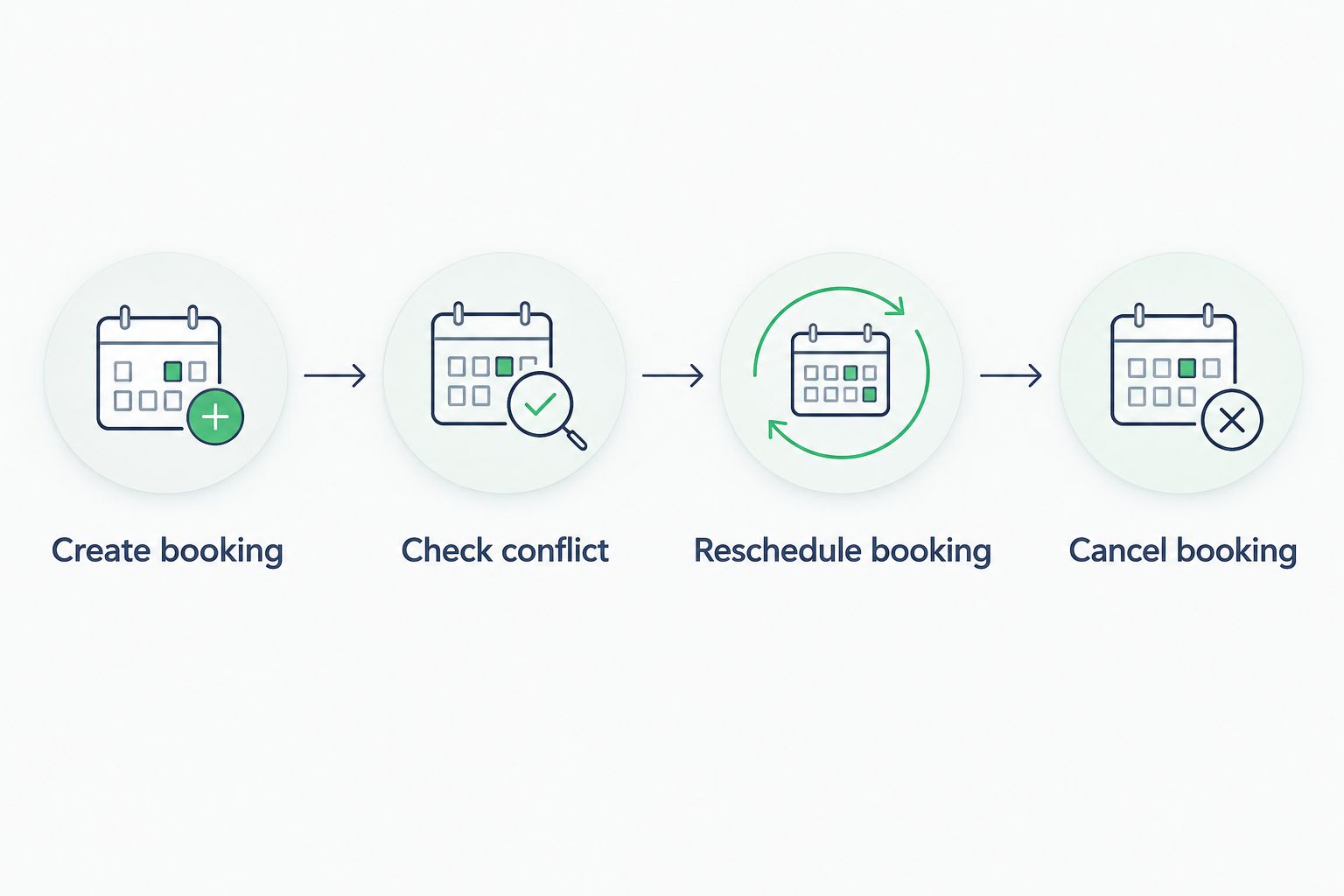
- Create booking: Open the booking page as an invitee and reserve a test slot. Check that the appointment appears on the intended booth calendar with the correct start time, end time and location.
- Check conflict: Reopen the booking page in a separate browsing session. Confirm that the reserved period is no longer selectable. Then create a separate busy entry on the booth calendar and check that its period is also excluded.
- Reschedule booking: Use the confirmation’s rescheduling link to move the test reservation. Verify that the calendar reflects the new time and that the original slot becomes selectable again, subject to your other rules.
- Cancel booking: Use the confirmation’s cancellation link. Verify that the reservation no longer blocks the calendar and that the slot returns to the booking page when otherwise eligible.
Expected result: Creating a reservation blocks the relevant time, rescheduling moves that block, and cancellation releases it. Remove the separate busy test entry when finished.
Also review what an ordinary calendar viewer can see. Use neutral reservation titles and restrict calendar-sharing permissions to the visibility your team actually needs. A shared scheduling display does not need to reveal the subject of a sensitive call.
Publish the booking route
Publish the link only after the lifecycle tests pass. The booking process should be easy to find, but visibility alone does not establish that the underlying calendar works.
- Copy the event type’s booking link and place it in your staff workspace directory or internal booking instructions. Describe it as the booth reservation link, not the link for scheduling a client call.
- State the booth name, location and booking rules beside the link. Tell staff whether reservations are required and who handles exceptions.
- Remove or retire competing reservation routes for that booth. If staff previously used a spreadsheet, make its replacement explicit rather than leaving both systems active.
- Ask a colleague who did not configure the account to make and cancel a reservation. Check that they can identify the booth and understand the confirmation without additional explanation.
Expected result: Staff have a clear route for booking the physical space, and the booking administrator can trace reservations to the correct calendar.
Soundbox Store supplies the private workspace; this calendar-first workflow supplies the reservation process. Do not describe the combination as a native hardware integration or automatic access-control connection.
Block the booth whenever its availability changes
A useful second workflow is to close booking time when the booth is temporarily unavailable. Use the same conflict calendar rather than editing every future reservation link.
- Open the booth reservation calendar and create an entry covering the unavailable period.
- Set its availability status to Busy. Use a neutral title that explains the closure without including unnecessary operational detail.
- Check the Calendly booking page and confirm that the affected period is excluded.
- When the closure changes, edit or remove that calendar entry and verify the resulting booking times again.
Expected result: The booth’s calendar blocks new reservations during the closure. Existing reservations still need review; adding a busy entry is not a replacement for contacting people whose bookings are affected.
For recurring closures, use the event type’s scheduling rules where appropriate instead of accumulating unrelated calendar entries. Keep the distinction clear: scheduling rules define normal bookable hours, while busy entries handle specific exceptions.
Troubleshooting
A reserved period is still selectable
Check that the reservation landed on the same calendar selected under Calendars to check for conflicts. Then inspect the calendar entry’s busy status and the connected account. A reservation written elsewhere cannot block the intended calendar.
Retest in a fresh booking session after correcting the settings. Do not diagnose the problem from a booking page that was already open before the change.
The booking appears on a personal calendar
Review Calendar to add events to and confirm which account owns the event type. Correct the destination for future bookings, then review existing reservations separately. Changing a setting is not proof that earlier appointments have moved.
No suitable times appear
Inspect available hours, time zone, duration, buffers and busy entries. A long busy event or an unrelated calendar selected for conflict checking can remove time you intended to offer. Change one setting at a time so the cause remains clear.
A cancellation leaves the booth blocked
Look for a duplicate calendar entry or an independently created busy block at the same time. Cancel the booking through its confirmation link, then inspect the reservation calendar. Deleting an unrelated calendar copy is not the same as cancelling the Calendly reservation.
The reservation exists, but the booth is occupied
A reservation calendar records bookings, not physical presence. Check whether the occupant reserved through another route or stayed beyond their booking. Address the booking rule with staff; do not treat occupancy as evidence that the calendar connection has failed.
Customise your workflow
Start with a single booth and a clear owner. Before adding more spaces, decide whether each booth needs its own booking identity, calendar and event type. Do not copy the same independent availability across several links and assume they form a shared inventory.
Keep the reservation logic tied to the physical space. A staff member’s personal availability and the booth’s availability answer different questions. If you need both checked together, design and test that additional workflow separately before offering it to clients.
For Soundbox Store office pods, expand the reservation process only when the current workflow has passed its lifecycle tests. Keep a short configuration record containing the booking owner, connected account, conflict calendar, destination calendar and normal booking hours.
FAQ
Can I connect a phone booth directly to Calendly?
This workflow connects Calendly to a calendar representing the booth, not to the booth hardware. It manages reservations without claiming a native booth integration or automatic door control.
What is the best calendar setup for a shared phone booth?
Use a dedicated booth reservation calendar that Calendly both checks for conflicts and uses for new bookings. Keep unrelated personal appointments out of the dedicated booking workflow.
Does putting the booth name in a Calendly location reserve it?
No. A location describes where the appointment happens; conflict checking and the reservation calendar determine whether the time is offered to another person.
Can employees reserve the booth for an existing client call?
Yes. Employees can reserve the booth through its booking link for the period they need, while keeping their client appointment separate. They must check that the booth reservation covers the call.
Will cancelling a booking make the booth available again?
A correctly working setup releases the reservation time after cancellation, provided no other rule or busy entry blocks it. Test this through the confirmation’s cancellation link before publishing the booking page.
Can this Calendly workflow unlock a Soundbox Store booth?
This guide does not connect Calendly to a Soundbox Store lock. Calendar reservations and physical access are separate functions, and no lock compatibility is established by this workflow.
One last thing
An empty booth is not necessarily an unreserved booth, and a reserved booth is not necessarily occupied. Keep the booking record and physical use distinct. Give staff a clear process for cancelling unused reservations rather than assuming that an empty space is free to take.


