 da/dk
da/dk



















 Produktguide
How to connect a soundproof phone booth to Salesforce call logs
Instead of manually copying call notes into Salesforce after leaving a phone booth, log the conversation on the customer record or configure your calling software to create the activity automatically. Phone booth Salesforce call logging connects your dialler and CRM; the booth provides the private workspace, not the software connection.
- Phone booth Salesforce call logging connects calling software to Salesforce, not the acoustic enclosure.
- Soundbox Store phone booths suit teams needing private calling space alongside a separate CRM workflow.
- Use Salesforce Log a Call to establish a working baseline before configuring automatic logging.
- Test record matching, activity ownership and duplicate prevention before expanding the workflow.
Why this matters
A call taking place inside a booth does not identify the customer, the salesperson or the opportunity. Salesforce needs those relationships from the person entering the activity or the software supplying it. Keep the physical workspace and the CRM connection separate when planning the setup.
Soundbox Store phone booths are best for teams that need a private calling space alongside a separate Salesforce logging workflow. For individual customer conversations, the Office Phone Booth Folio is designed for one person taking private calls. Its role in this workflow is workspace privacy; configure activity capture in Salesforce and your calling software.
A useful call record explains what happened and what happens next. A completed activity with no customer relationship or usable notes leaves the next salesperson without context.
Before you start
- Accounts and access: Have a Salesforce login that can open the relevant customer records and create activities. For automatic logging, involve the Salesforce administrator and the person responsible for your calling software; confirm that the chosen connector supports your Salesforce environment.
- Working materials: Use your normal laptop, headset and calling application inside the booth. Prepare a clearly labelled test customer record and agree which customer and opportunity records should receive call activities.
- The hidden gotcha: Check whether your calling software already creates Salesforce activities. Adding another logging route can duplicate the same conversation. Also establish whether the connector writes standard activities or its own records before building reports or automation around them.
Do not start by looking for a Salesforce setting on the booth. Start with the application that places the call and the Salesforce record that should receive its outcome.
Choose the logging route
Best for establishing the workflow: manual logging. Best for reducing repeated entry: a supported calling-software connector. Both routes need a clear rule for customer matching and activity ownership.
| Logging route | Best for | Advantage | Limitation | What to verify |
|---|---|---|---|---|
| Salesforce Log a Call | Teams establishing a consistent call-note process | You choose the customer record and enter the outcome directly | The salesperson must save the activity | Customer relationship, notes and ownership |
| Calling-software connector | Teams whose calling application supports Salesforce activity creation | The connector can transfer supported call details | Behaviour depends on the connector and its configuration | Supported records, field mapping and duplicate handling |
Manual logging is a useful fallback, but it should not run alongside automatic creation for the same call without an agreed exception rule. Otherwise, reports can count two entries for one conversation.
The steps below establish the manual route first. The automatic variant then uses the same acceptance checks without assuming that every calling application has identical settings.
Customer record selection
- Sign in to Salesforce and open the lead or contact associated with the conversation. Use a designated test record while checking the workflow.
- Confirm the identity using the information already held on the record. Do not select a person solely because a shared telephone number matches.
- Decide whether the call also concerns an account, opportunity or another supported record. Keep the individual participant and the commercial context distinct.
- Find the record's activity area and look for Log a Call. If the action is absent, ask the Salesforce administrator to check the record page, available actions and your access before continuing.
Expected result: You have the correct customer record open and a usable Log a Call action. You also know which business record, if any, should be associated with the conversation.
This step prevents a common reporting problem: a call exists, but the opportunity owner cannot find it where they expect. Establish the relationship rule before asking the whole sales team to follow it.
For a new enquiry with no existing record, follow your organisation's record-creation process first. Creating a second contact to make logging easier creates a separate data-quality problem rather than fixing the workflow.
Salesforce call activity
- Open Log a Call on the selected record. The instructions here use standard Salesforce English labels; customised actions can present different fields.
- Enter a useful Subject describing the purpose or outcome. Write something another salesperson can understand without opening the notes.
- Enter the conversation summary in Comments. Separate the customer's requirement, the outcome and the agreed next action.
- Check Name and Related To where those fields are displayed. Name identifies the person relationship; Related To supplies the associated business context.
- Complete any additional fields required by your organisation, then select Save.
Expected result: The saved call appears in the record's activity history or activity timeline. Open it and confirm that the subject, comments and relationships match what you entered.
Avoid using the subject as a substitute for the notes. A short outcome belongs in Subject; the detail another colleague needs belongs in Comments.
Saving a call log does not itself prove that a follow-up task exists. If the customer expects a proposal, callback or demonstration, check your team's follow-up process separately rather than assuming the completed call has scheduled it.
Booth-side working routine
- Take your normal calling device and headset into the booth. Use your own Salesforce and calling-software accounts rather than a shared salesperson login.
- Check that the calling application can place a call from that location. Keep connection testing separate from checking whether Salesforce saves an activity.
- Make a test call and enter the outcome while the customer record remains open. For manual logging, finish with Save before moving to the next customer.
- Reopen the saved activity after leaving the booth. Confirm that changing location has not become an excuse to postpone the notes.
Expected result: You can complete the call and save its context during the same working session. The record remains available to the colleagues who need it through their normal Salesforce access.
The practical benefit of a Soundbox Store phone booth is a separate space for calls. It does not replace individual software accounts, customer matching or a consistent note-taking routine.
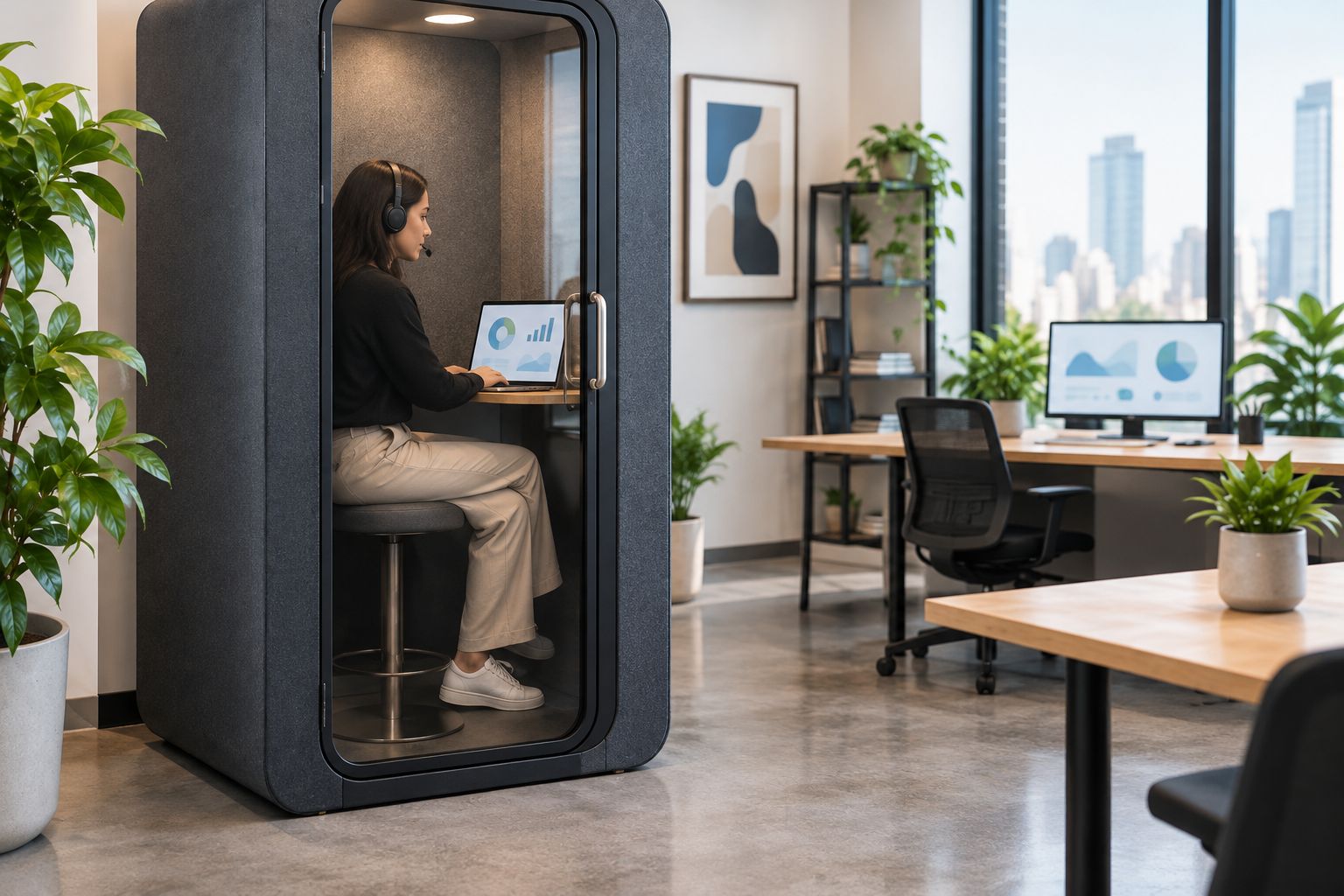
The booth and the CRM solve different problems. Test both in the actual working location, but diagnose connection quality and missing activities separately.
Acceptance checks
- Run 3 test calls using clearly identified test records: a completed conversation, an unanswered attempt and a call associated with an opportunity. These are proposed checks, not performance benchmarks.
- After each call, inspect the customer record and any intended related record. Confirm that the activity describes the actual outcome rather than treating every attempt as a completed conversation.
- Check the activity owner. A colleague using the same booth should still create activities under the appropriate individual account.
- Count the resulting entries. Set an acceptance target of 1 intended call activity per test call, unless your documented process deliberately uses another structure.
- Confirm that a colleague can understand the next action without asking the original caller to reconstruct the conversation.
Expected result: All test outcomes have the intended customer relationship, owner and notes, with no unexplained duplicate activities.
Use these checks for manual entry and again after changing the logging method. A successful connection screen is not evidence that the activity reached the right record.
Keep a short test record of the expected and actual result. This gives the administrator a specific failure to investigate instead of a report that logging sometimes fails.
Log calls automatically when they finish
Use this variant when your calling application has a supported Salesforce connector. The configuration belongs to that application and Salesforce, not to the booth; there is no universal connector screen or button sequence.
- Confirm in the calling application's documentation that its Salesforce connection creates the call records your team needs. Distinguish activity creation from features that only display customer information during a call.
- Have the authorised administrator connect the intended Salesforce environment using the provider's documented process. Check the environment before sending test data.
- Configure the supported call-completion behaviour. Agree how the connector handles answered calls, unanswered attempts and calls without a matching customer.
- Review the available mapping for customer relationships, activity ownership, call outcome and notes. Transfer only fields that the connector actually supplies.
- Repeat the acceptance checks above. Stop routine manual creation for automatically logged calls only after the test results are correct.
Expected result: Supported calls create the intended Salesforce entries without a second manual activity. The salesperson still reviews the outcome and adds context that the connector does not capture.
Automatic capture reduces repeated entry; it does not guarantee useful notes. Keep a manual exception process for failed synchronisation or unmatched customers, and identify those exceptions before re-entering anything.
Update the existing log when call details change
A second workflow applies when a salesperson adds an outcome or notes after the call has finished. Update the existing call record rather than creating another activity for the same conversation.
For manual logging, open the saved activity and use its available edit action. Add the missing context, save the change and verify that the original relationships remain intact.
For connected calling software, establish whether later edits synchronise to Salesforce. Some configurations only create an initial entry; do not assume that editing notes in the calling application also updates the CRM.
Where you build a custom update process, retain the calling platform's call identifier and its corresponding Salesforce record identifier. Match updates to that established relationship rather than relying only on a telephone number and approximate call time.
Set a test target of 0 additional activities when editing an existing test call. If an edit produces another entry, correct the create-versus-update behaviour before expanding the workflow.
Troubleshooting
Log a Call is missing
Ask the Salesforce administrator to inspect the record page, configured actions and activity access. Do not create unrelated records to work around a missing action; fix the route on the intended customer record.
The call appears against the wrong customer
Inspect the manual selection or connector matching rule. Shared switchboard numbers and duplicate customer records make telephone-number-only matching ambiguous; route uncertain matches for review rather than assigning them blindly.
Every call creates duplicate activities
Check for simultaneous manual logging, connector logging and custom automation. Keep one creation route for each call, then use the existing record for later updates. Confirm the source before deleting any entries.
The call belongs to the administrator
Inspect the Salesforce user relationship and connector ownership settings. An administrator authorising the connection does not establish the correct salesperson ownership rule; test with the actual caller's account.
The call works, but no activity appears
Check the connector's synchronisation status, supported call outcomes and reported errors. If manual Log a Call works, investigate the software connection separately from the booth and headset. Check for delayed creation before entering a replacement activity.
Customise your workflow
Once call capture is reliable, standardise the information your team records. Agree a short note structure: customer requirement, outcome and next action. Keep completed-call logging separate from follow-up scheduling so that neither is mistaken for the other.
If booth utilisation matters, define a separate workspace reference rather than placing room names in customer-name fields. Only capture a booth identifier when your booking or calling process actually supplies it; Salesforce cannot infer a caller's physical location from a saved activity.
Assign ownership of exceptions as well as successful calls. Someone needs to review unmatched customers, failed transfers and duplicate reports. Keep that responsibility visible in the operating process.
FAQ
Can I connect a soundproof phone booth directly to Salesforce?
This workflow connects your calling software or manual call entry to Salesforce, not the booth enclosure. Treat the booth as the workspace and configure logging in the applications you use.
What's the simplest way to log a call from a phone booth?
Open the customer's Salesforce record, select Log a Call, enter the outcome and save it. Confirm the saved activity has the correct customer and related business record.
Do I need a connector for Salesforce call logging?
You do not need a calling-software connector to enter a call manually with Log a Call. Automatic capture requires a supported integration or a separately configured process.
Will Salesforce automatically know which booth I used?
A saved call activity does not by itself identify the booth you used. A workspace reference needs a separate, defined source if you want to capture it.
How do I stop the same call being logged twice?
Use one activity-creation route for each call. Check whether a connector already creates the entry before adding a manual log or another automation.
Does automatic call logging include my follow-up notes?
Follow-up note transfer depends on the connector's supported behaviour. Test a later edit and confirm that it updates the existing Salesforce record rather than creating another activity.
One last thing
Test a failed call before declaring the workflow ready. An unanswered attempt needs a different outcome from a customer conversation, even when both create activities. Getting that distinction right makes the history more useful than simply proving that a connector can save a record.


