 en/ch
en/ch



















 Product guide
Connect an Office Pod to Robin Room Booking: Setup Steps
Walking over to check whether the pod is free wastes more time than the meeting itself. Connect the pod to Robin room booking so its calendar, capacity and status show up wherever your team already checks for a free room, and the walk-and-check habit disappears for good.
- Connecting an office pod to Robin room booking means creating a resource calendar first, then linking it inside Robin's Spaces dashboard - no pod-specific plugin is needed.
- A 2-person meeting booth and a 4-person pod sync the same way: calendar first, room profile second, capacity and amenities third.
- Add an occupancy sensor if you want Robin to release no-show bookings automatically instead of showing the pod as busy while it sits empty.
- Most setup delays trace back to calendar permissions, not Robin or the pod itself - fix the calendar first and the rest takes under an hour.
Why this matters
A pod without a booking link becomes either permanently "reserved" by whoever grabbed it first, or permanently empty because nobody trusts it's actually free. Either way, the unit isn't earning its floor space. A 4-person meeting pod that isn't searchable inside Robin gets skipped in favour of a booked conference room, even when it's sitting open all afternoon.
Once the pod exists as a resource inside Robin, employees find it the same way they find any conference room: by headcount, by amenity tag, by floor. The pod stops being a mystery box in the corner and starts behaving like inventory.
Before you start
- Admin access to Robin's Spaces dashboard. Room resources can only be added and edited by a workspace admin, not a standard user.
- A dedicated resource calendar for the pod, created in Google Workspace or Microsoft 365, before you open Robin. Robin links to an existing calendar object; it doesn't create one for you.
- The gotcha that stalls setups every time: turn on auto-accept on that resource calendar before you link it. If auto-accept is off, every booking made through Robin sits as "pending" until someone manually approves the calendar invite, and the pod shows as free to anyone walking past even though it's technically booked. Fix this before step one, not after a week of complaints.
Set up the pod as a room resource in Robin
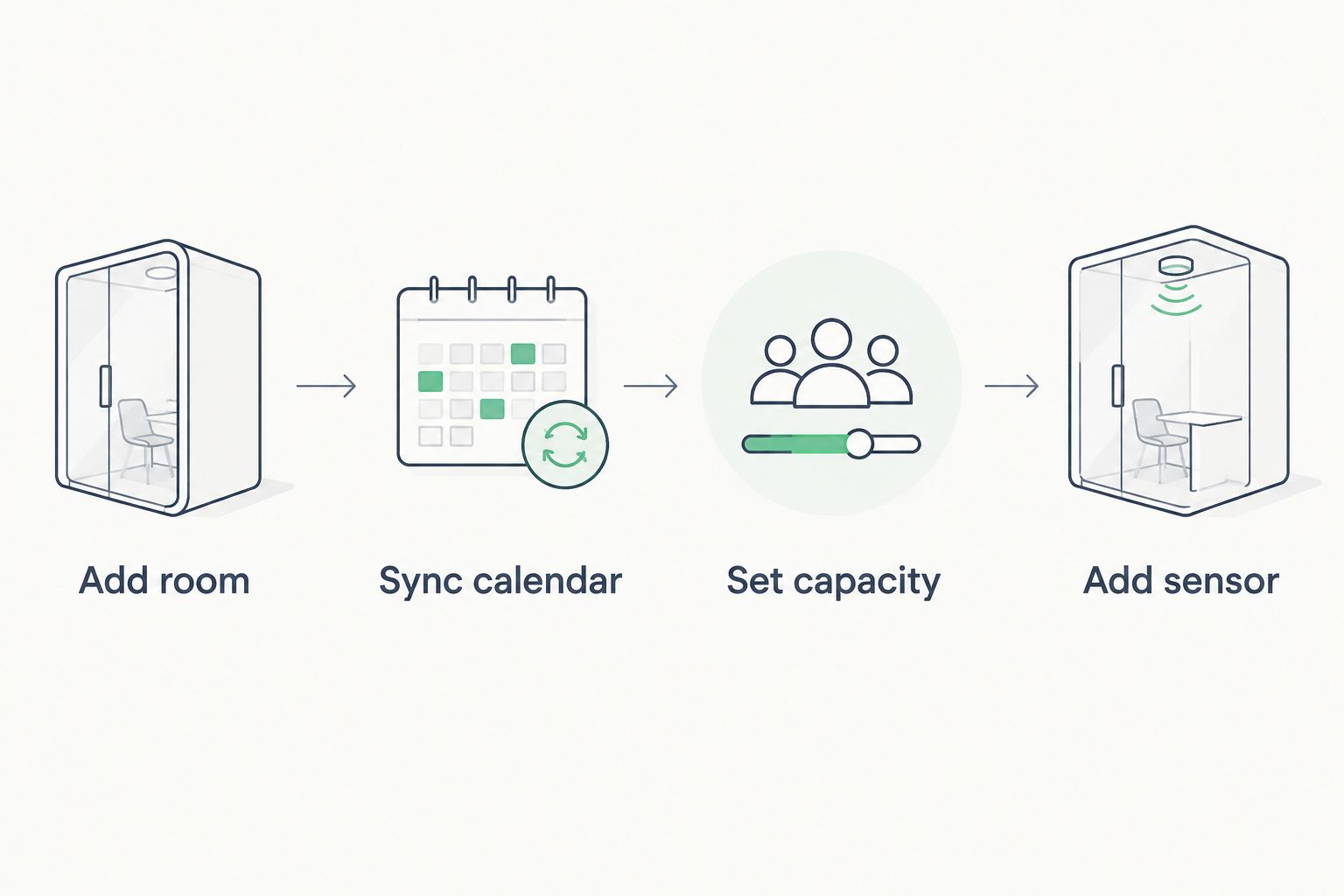
- Log in to Robin as a workspace admin and open Spaces from the left-hand navigation.
- Click Add Room (sometimes shown as + Room depending on your Robin version).
- Name the room something specific to the physical unit - "Meeting Pod, 2-Person, 3rd Floor" beats "Pod 1" for search and for anyone new to the building.
- Set Room Type to Meeting Room for multi-person pods, or Focus Room for solo units.
Expected result: the room appears in the Spaces list, but shows no calendar connection yet - that's the next step.
Sync the resource calendar with Google Workspace or Microsoft 365
- Open the room's profile and select the Calendar tab.
- Choose your calendar provider - Google Workspace or Microsoft 365.
- Search for the resource calendar you created for this specific pod and select it.
- Confirm the connection. A green Connected status confirms the link is live.
Expected result: a booking made in Robin appears on the resource calendar, and a booking made directly on the calendar appears in Robin, without a second entry step anywhere.
Configure capacity, amenities and booking policies
- Set Capacity to match the pod's actual person count - 1, 2, 4 or 6, depending on the unit.
- Add Amenities tags such as Soundproof, Video Call Ready, or Whiteboard if the pod is furnished for it.
- Under Booking Policies, set a maximum booking length and decide whether check-in is required to hold the slot.
Expected result: when someone filters Robin's room search by headcount or by "soundproof," the pod now surfaces correctly instead of getting lost among open desks and full conference rooms.
Multiple pod sizes connect the same way, only the capacity field changes:
| Pod | Capacity | Best for in Robin | Verdict |
|---|---|---|---|
| Quell Office Pod Solo | 1 person | Focus room bookings, private calls | Buy for solo call pools |
| Office Phone Booth Quell - 2 Person | 2 people | Small meeting room bookings | Buy for two-person huddles |
| Quell 4-Person Soundproof Office Pod | 4 people | Standard team meeting bookings | Buy for weekly team syncs |
| Quell 6-Person Meeting Booth | 6 people | Department-level meeting bookings | Buy for larger stand-ups |


Track pod usage with a connected occupancy sensor
This is the second workflow worth setting up alongside the first: instead of relying on people to cancel bookings they don't use, let a sensor tell Robin when the pod is actually empty.
- Install a compatible occupancy sensor inside the pod, following the sensor manufacturer's own placement guidance.
- In Robin, go to Sensors and pair the device to the pod's room profile.
- Set the no-show release window - the number of minutes Robin waits before freeing an unused booking.
Expected result: a booked pod that stays empty past the release window flips back to available automatically, instead of showing as busy for a meeting that never happened.
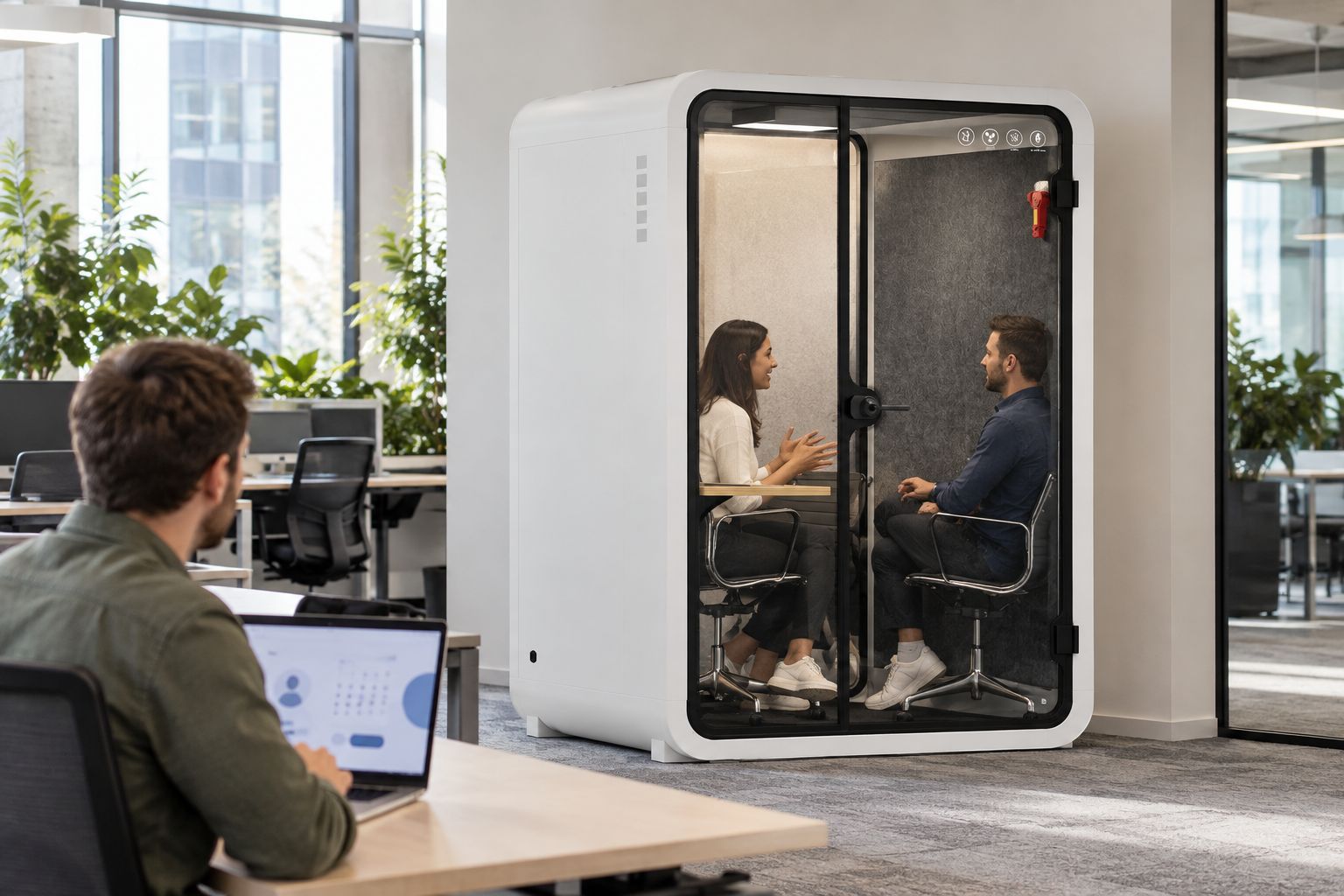
Robin doesn't control a door lock directly, so if you want the pod to lock automatically between bookings rather than staying open all day, that's a separate accessory decision - a standalone system such as the Smart Lock Professional sits on the pod door independently of the booking calendar.
Troubleshooting
- The pod doesn't appear when someone searches Robin. Check that Room Type and Amenities tags match the filters people actually use - a pod tagged only "Focus Room" won't surface under a "Meeting Room" search.
- A booking shows on the calendar but not in Robin. This is almost always a sync delay or a broken authentication token - re-open the Calendar tab on the room profile and reconnect.
- The pod shows busy but is empty. Either the occupancy sensor isn't paired, or the no-show release window is turned off entirely.
- Two people book the same pod from Outlook and from Robin at the same time. This happens when the resource calendar wasn't shared correctly - both platforms need to read from the identical calendar object, not two separate ones.
- Capacity filters return the wrong pod. Usually the Capacity field wasn't updated after a team moved from a 2-person booth into a 4-person unit.
Customise your workflow
Once one pod is connected, the same steps apply to every other pod on the floor - the full guide to connecting multiple pods for larger teams covers scheduling across several units without creating conflicting bookings. For the booking policies themselves - lead time, cancellation windows, recurring holds - see the guide to managing pod booking and scheduling in the office.
FAQ
What's the best way to connect an office pod to Robin room booking?
Create a dedicated resource calendar for the pod in Google Workspace or Microsoft 365, then link that calendar to a new room profile inside Robin's Spaces dashboard. No pod-specific integration is required.
Does Robin work with any office pod brand?
Robin treats a pod like any other bookable room resource, so it works with any physical unit that has a resource calendar attached. The pod brand doesn't matter to Robin - the calendar link does.
How long does it take to sync a pod's calendar with Robin?
Once the resource calendar exists with auto-accept turned on, linking it inside Robin takes a few minutes. Most delays come from calendar permission issues set up before Robin is even opened.
Can Robin release a no-show booking automatically?
Yes, if a compatible occupancy sensor is paired to the room profile and a no-show release window is set. Without a sensor, a no-show booking stays marked as busy until someone cancels it manually.
Is a sensor required to book a pod in Robin?
No. Basic booking only needs the resource calendar link. The sensor is an optional add-on for automatically freeing unused bookings.
How do I stop double-bookings between Outlook and Robin?
Make sure both platforms point at the same resource calendar object rather than two separately shared calendars. Double-bookings almost always trace back to a calendar that was duplicated instead of shared.
One last thing
The amenity tags matter more than most setups give them credit for. A pod tagged only by capacity gets found by headcount searches and skipped by anyone filtering for "soundproof" or "video call ready" - tag both the size and the acoustic use case, and the pod stops sitting empty next to a noisy open desk row.


